
VORA VIVI · CUA GUIDE
A little VIVI.A helping hand.
On your PC, or through @vivi while you’re away. Follow the screens to set up local and remote CUA, then make your character your own.
Windows · macOS · Linux
 LOCAL
& REMOTE
01 / FOLLOW THE SCREENS
Let the screens show you how.
Choose how you’ll work, then select a step.
Account and permissions → Request → Result
Get this PC ready
Connect your VORA account and check screen and input permissions. Approve any required settings on this PC.
- Connect your account
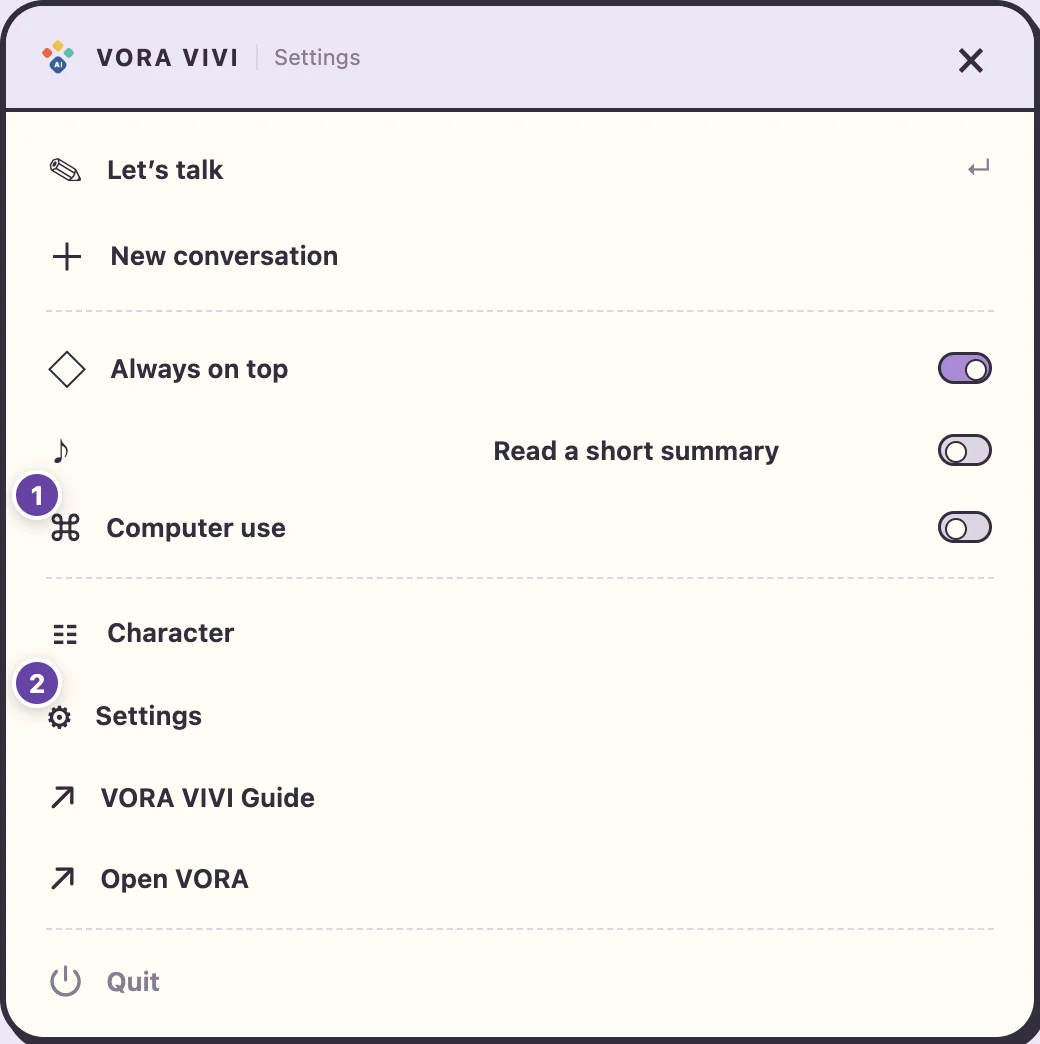
- Settings → Computer use
- Approve required OS permissions
- 01Connect your account
- 02Settings → Computer use
- 03Approve required OS permissions

Tell VIVI what to do
Name the app and the result you want. For web tasks, VIVI first uses your running browser, or opens your installed default browser if it is closed. You can name a site without knowing its URL.
- Name the app and the task
- Enter a request → Start
- Stop when needed
Keep the existing contents of the open “Meeting notes” document and add “The next meeting is on Friday” exactly once on a new line at the end.
Name the app and document you want to use, then start from the VIVI request panel. Check the result together
Review the completion notice and the actual document or file. Closing the request panel keeps an active task running.
- Distinguish complete, partial and failed
- Check the actual document or file
Completed · Kept the existing contents and added the requested sentence once on a new line at the end.
This is an illustration. Check the actual completed, partially completed or failed status alongside the document contents.
Prepare the PC → Send @vivi → Check result
Allow remote work on your PC
Check the VIVI account and PC name, then enable remote work. From 0.1.9, use files your OS account can access without folder setup. Keep power and internet available.
- The same VORA account
- Allow remote work on this PC
- No folder setup from 0.1.9
- 01The same VORA account
- 02Allow remote work on this PC
- 03No folder setup from 0.1.9
Call @vivi in VORA
Use normal chat on the same account and include the PC name and task. Distinguish the acceptance notice from the result.
- Use @vivi in normal chat
- Include PC name and task
- Acceptance is not completion
@vivi list only the PDF filenames and modification dates in the Reports folder on Office PC.
Replace the PC and folder names with yours. An acceptance notice is not a completed task. Check the result notice
Review completion or the reason work could not proceed, and check the actual files. If the PC is signed out, first sign in using a supported method and get VIVI ready.
- Check the notice and task conversation
- Review the actual files
Completed · Checked the PDF filenames and modification dates in the Reports folder.
This is an illustration. Distinguish acceptance from completed, partially completed or blocked results, and check the actual list or files. What does your OS need?
VIVI computer tasks
Use the right controls. Review a step when needed.
VIVI uses app and web controls first, then checks a fresh view when screen actions are needed.
Work directly with apps and the web
VIVI reads and uses supported buttons and input fields. If a window moves, it checks the current state again. Try “Summarize the speech and captions in this YouTube video.”
Review the step that got stuck
When needed, two reviews look for a way forward in parallel. Account-specific summaries on this PC help with the next plan.
Find an installed alternative
If the requested app is missing, VIVI looks for an installed app suited to the task and file format, and tells you what it chose. Unsupported features stay clear.
Auto mode tries background control first and shows a notice on this PC when foreground control is needed. Uncertain input is not repeated. Support varies by app, OS and action.
CHAT → CUA
Call @vivi right from your chat
Start a message with @vivi, and VIVI picks up the conversation and attachments you already have.
Carry your Service chat over to @vivi
In VORA chat, try “@vivi turn the answer above and attachments into a document.” Your quoted answer or recent context and attachment analysis go along.
@vivi works inside the VIVI app, too
Start VIVI’s own chat with @vivi to switch to computer use. If it’s off, VIVI keeps your request and guides setup.
Honest results, app-by-app permissions
Check what actually happened and any missing permission. On Mac, the result points you to the Automation setting for the affected app.
A closer look
- What travels with @vivi: the answer you explicitly quoted (or the latest main answer on screen), up to six messages from the current conversation, and your attachments. Files you just attached and files from recent context come first, up to ten in total. If older messages or files are left out, you're told. Referenced messages are checked against the originals. Your whole history is not sent, and unrelated older VIVI results don't come along automatically.
- The request box keeps only your request and file links; attachment analysis travels separately as reference material. The regular-chat analysis is reused with full, partial, failed or unavailable labels. Long attachments are marked as partial; an oversized anchor answer gets a clear size notice.
- On a Mac, directly using an app’s features, such as Save, may need Automation permission for that app.
0.1.9 · Prepare app automation
- Open the document app you want to use.
- In VIVI settings → Computer use → App automation, select that app.
- Request permission, then allow it in the macOS prompt.
If you already denied access, enable the app under VORA VIVI in System Settings → Privacy & Security → Automation. Keep completed work and request only the remaining action again.
- If computer use is off, your request is kept, and once permissions are actually ready the original task runs once. VIVI won't repeat an input automatically when it can't tell whether it went through, and changing a permission never silently replays a failed input. Just ask again if you want a retry.
Use the same VORA account and turn remote access on. For now, sign in to your work PC and run VIVI. A small login window may appear only on a supported, configured profile in a confirmed pre-login or logged-out state. Locked, other-user, offline, or unknown states never open a password window. Remote OS login isn't available everywhere.
Prepare PCs that need sign-in, too
For the enrolled PC account, enter its password in the separate form; expand account options only if a username is needed. Follow the actual form for older versions or special OS states. The request resumes when VIVI is ready in that same user session. Never enter passwords in chat.
The sign-in form appears only for a confirmed signed-out or pre-login state with a supported OS setup. It does not open for locked, offline, other-user-active or unconfirmed states.
Follow each sign-in step
The separate sign-in guidance follows 한국어, 日本語 or English selected in VORA. The PC’s OS display language stays unchanged.
1. Check the connection
Confirm the selected PC is connected. A connection alone does not mean sign-in is complete.
2. Open the separate sign-in form
Use the standard sign-in form first. A login-screen view appears only when the OS requires additional authentication and the PC supports it. Keep the window open while signing in.
3. Sign in yourself
Authenticate in the separate form, never in chat. After 20 seconds without interaction, the additional-authentication screen is hidden. Select “Show sign-in screen again” to check its current state.
4. Sign in, then resume the request
The window closes automatically after successful sign-in. The original request resumes once VIVI and computer use are ready in that same user and screen session. Start a new request by including @vivi.
macOS
Local account password · Per-PC setup required
macOS · Basic sign-in uses Apple Screen Sharing and the enrolled local account password. Screen Recording and Accessibility need separate approval. FileVault before boot is not unlocked. Finish first-user setup or additional approvals on that PC.
Set up once on this PC
- Register the receiver. In OS approval settings, allow VORA VIVI to run in the background, then return to finish registration and check again.
- Connect your VORA account, then use OS login connection setup to protect the connection first. Administrator approval and Sharing approval are separate steps.
- In General → Sharing → Screen Sharing, allow only the enrolled OS user and check again. Leave existing Remote Management or organization settings unchanged.
Windows
Local account password · Per-PC setup required
Windows · Requires an RDP-host-capable Pro, Enterprise, Education or Server edition and the enrolled local account password. Home, PIN, Hello, Microsoft and organization accounts are excluded. A remote screen for additional authentication is not provided.
Set up once on this PC
- Install the signed MSI with administrator approval and check the receiver service.
- Connect your VORA account, then approve OS login connection setup. Follow the guidance if existing remote access or organization policy conflicts.
- Use the enrolled Windows local account password. PIN, Hello, Microsoft and organization accounts are not supported by this login method.
Linux
Local account password · Per-PC setup required
Linux · Requires the Ubuntu 24.04 .deb package with Xorg, xrdp and xorgxrdp. After local-password sign-in, VIVI must be ready in that same Xorg session. Unlock a locked credential store on that PC.
Set up once on this PC
- Install the .deb on Ubuntu 24.04 and prepare Xorg, xrdp and xorgxrdp. An AppImage alone cannot register the boot service.
- Approve setup on this PC: register the receiver → connect your VORA account → configure OS login. Missing packages are not installed automatically.
- Sign in with the enrolled Linux local account password. Verify that VIVI and computer use are ready in that same Xorg screen session.
What happens in each state?
Different states need different next steps. These are guide examples; this page does not query a real PC.
Ready to work
When VIVI is ready in the same user and screen session, the task starts without a sign-in screen.
The PC is signed out
Sign-in guidance is offered only on a PC with a supported setup. The request waits until sign-in preparation is complete.
Sign in from the @vivi status card in VORA. This guide never receives your password. Use the separate sign-in view for supported additional authentication; finish unavailable OS approvals on the PC itself.
No one has signed in yet
Complete the supported sign-in steps and wait for VIVI. Powering on the PC alone does not make screen control ready.
Sign in from the @vivi status card in VORA. This guide never receives your password. Use the separate sign-in view for supported additional authentication; finish unavailable OS approvals on the PC itself.
The PC’s screen is locked
Unlock it using the method supported by that OS. A signed-out login screen is not opened.
Check the work screen’s connection
Reconnect the original screen session. A new task is not sent to a different screen.
Another user is active
Return to the intended user’s screen, then check again. Another user’s screen is not controlled.
The PC is asleep
Wake it using a supported method, then check the connection. A sign-in screen is not opened.
The PC cannot be reached
Check power, internet and VIVI’s connection. An unreachable PC is not assumed to be signed out.
Checking the PC’s state
Wait for a fresh status result. Sign-in and screen control do not start while the state is unknown.
Check permissions on this PC
Approve screen and input access for the app named in the guidance, then check again in VIVI.
Signed in. Getting VIVI ready
VIVI starts in the same user session and checks the VORA account and computer-use readiness before continuing the original task once. Complete any additional OS approval or account sign-in on that PC.
This sign-in method is not supported yet
The extra authentication step or OS setup needs review. VIVI will not silently switch methods or ask for the password again.
The request was stopped
Finishing sign-in or reconnecting will not restart this request. Send a new request when you are ready.
Only the setup you need, in three steps
Open the relevant item. Power and startup recommendations for later do not block a task that is ready now.
OS permissions
- Open the OS setting named by VIVI.
- Approve screen and input access for the named app yourself.
- Reopen VIVI if required, then check permissions again.
Remote receiver service
- Use an installer that includes the receiver service, then check OS sign-in support and readiness on this PC.
- Review any service or administrator approval requested by the installer.
- Confirm the intended PC and VORA account are connected.
Automatic startup
- Distinguish starting VIVI at sign-in from starting a receiver at boot.
- Enable launch at sign-in and remembered sign-in in VIVI. Receiving requests before sign-in requires the registered receiver service.
- At the next sign-in, check VIVI, the VORA account and computer-use readiness. If the OS locks saved sign-in information, unlock it on that PC.
Connection and firewall
- Check power, network and the receiver service.
- If an organization firewall is used, check outbound HTTPS (443) from VIVI to VORA.
- No public RDP or VNC port is needed. Do not disable the whole firewall.
Power and sleep
- Check power and network availability for future requests.
- Choose supported sleep settings that match how you use the PC.
- Continue a ready task now and check before the next unattended session.
Availability depends on the installed version, OS capabilities and PC readiness. Registering a service alone does not complete sign-in or make computer use ready. Cancelled requests do not resume automatically.
02 / A LITTLE TEAMWORK
Ask. Work together. Check the result.
01 · Ask for a task
Name the app and the result you want. For web tasks, VIVI first uses your running browser, or opens your installed default browser if it is closed. You can name a site without knowing its URL.
02 · Work on the PC
Keep the PC powered on and VIVI running during the task.
03 · Review the result
Check the notice and actual files. Animation does not measure progress.
03 / YOUR FIELD MANUAL
Open just the chapter you need.
All 33 chapters of detailed instructions and troubleshooting are here.
01What VIVI can do
VORA VIVI is a character-based desktop AI agent for Windows, macOS, and Linux. It connects to your own VORA AI for normal chat, HYPER RAG, file questions, voice input, short spoken answers, calendar and VORA notifications, local computer use, remote @vivi requests, and external character packs.
Go to local CUA setup · Go to remote @vivi setup
Website account settings · Saved card settings
| Setup question | Local CUA | Remote @vivi |
|---|---|---|
| Where do I start? | Computer use in VIVI on the working PC | Normal chat with your own AI in VORA |
| What do I enable? | Computer use after checking permissions | Settings → Allow remote work on this PC; CUA is enabled with it |
| How do I choose a target? | Select one open app window and its control mode | All files and folders accessible to the signed-in OS account are available. No folder registration or folder-count limit applies. |
| How do I ask? | Enter a goal and start work in this window | Send @vivi followed by the PC, task, and desired output |
| Where are results? | The actual app and the CUA task result | VORA notifications, VIVI task conversation, attachments or AI Generated Files |
| How do I stop? | Stop now or turn computer use off | Remote settings → Stop now and turn off |
CUA means Computer Use Agent: reading a screen and operating an app. Start local CUA directly on the working PC, or send a remote @vivi request from VORA normal chat. Character customization changes appearance and animation without granting computer-control permissions.
The desktop app is free to download. AI features and file limits follow your VORA account permissions and service policies. VIVI is not a mobile installation. The website demo is a browser preview and does not send live service requests.
02Local and remote CUA setup quick start
Local CUA on this PC
- Get this PC ready — Connect your VORA account and check screen and input permissions. Approve any required settings on this PC.
- Tell VIVI what to do — Name the app and the result you want. For web tasks, VIVI first uses your running browser, or opens your installed default browser if it is closed. You can name a site without knowing its URL.
- Check the result together — Review the completion notice and the actual document or file. Closing the request panel keeps an active task running.
Remote @vivi from VORA to your PC
Remote @vivi from VORA to your PC
- Allow remote work on your PC — Check the VIVI account and PC name, then enable remote work. No folder registration is needed. Keep power and internet available.
- Call @vivi in VORA — In normal chat on the same account, write @vivi and your task. One PC is selected automatically; with several, choose by name, OS and connection status. Check the short device ID when names match.
- Check the result notice — If sign-in is needed, use the separate form on the status card. The original task continues after VIVI is ready on that same PC. An offline selection is never replaced by another PC.
03Installation and updates
Official VIVI downloads list the current release and SHA-256 checksums. Choose the installer for your OS. App versions and character-pack versions are separate.
| System | Installer | Steps |
|---|---|---|
| macOS | Apple Silicon / Intel DMG | Open the DMG, install the app in Applications, and launch it. |
| Windows | 64-bit MSI | Follow the installer and run VIVI in your normal desktop session. |
| Linux | x86_64 AppImage or DEB | Choose the format for your distribution. Give an AppImage executable permission before running it. |
Complete VORA registration or account connection on first launch. Choose whether to stay signed in and start automatically. Finish ongoing tasks before an update, then check account connection and computer-use permissions again. Read the installation and permissions notes on the download page.
04Connect your VORA account
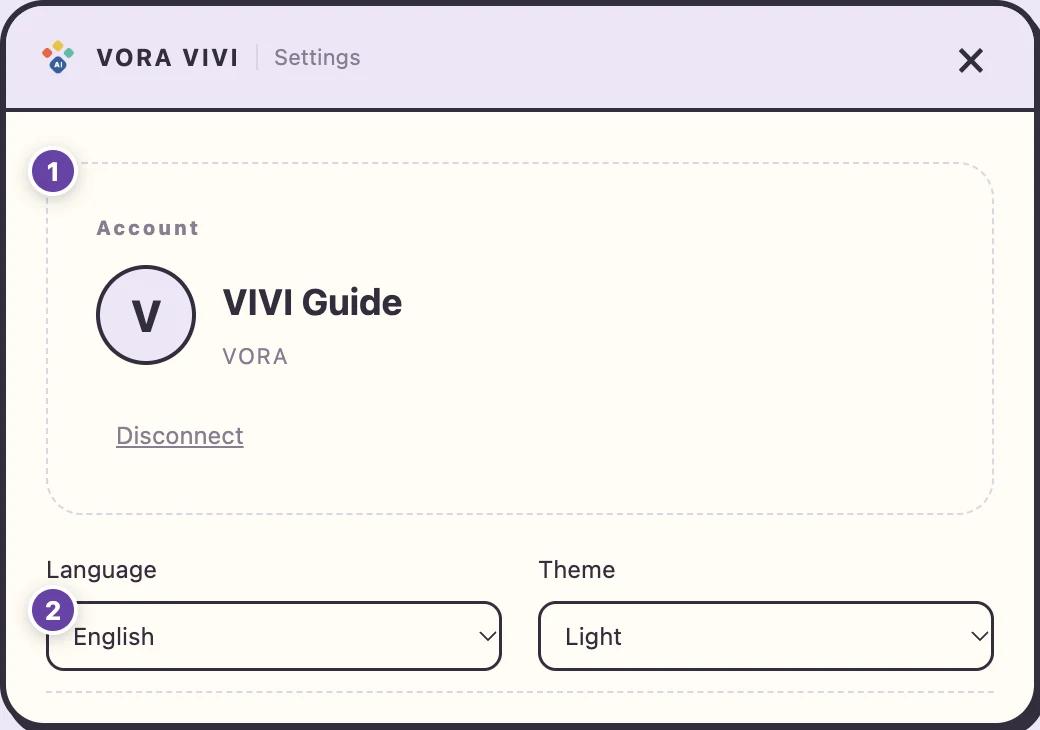
- Choose VORA registration or connection in VIVI and authenticate your own account in the browser.
- Authorize the connection, return to VIVI, and check that your AI is connected. Staying signed in allows reconnection on later launches.
- Use the same account in VORA web chat and VIVI on the PC. This does not connect a friend’s AI or computer.
- Sign in again after signing out or revoking access. After changing accounts, recheck remote permission, folders, and available tools.
Answers use your AI’s knowledge and permissions. Installing VIVI does not grant access to another account’s documents or files denied by OS permissions.
05Check and approve CUA permissions on each OS
OS permission enables screen access and input. Starting a VIVI task executes the request you enter. Complete OS approvals directly on the work PC. Sending @vivi from another device cannot approve an OS security prompt on its behalf.
macOS permissions · Windows checks · Linux checks · What each approval allows · Final check after granting access
| System | Setup | Limits |
|---|---|---|
| macOS | System Settings → Privacy & Security → Screen Recording and Accessibility: allow VORA VIVI. The app also has buttons to open these settings. | Restart VIVI and recheck permissions. Approve OS security prompts yourself. |
| Windows | Run VIVI and the target app in a signed-in normal desktop session. | UAC screens and elevated apps are restricted. Open the app without elevation or complete the action yourself. |
| Linux | Approve screen sharing and RemoteDesktop portals on Wayland; check the display session and AT-SPI access on X11. | Support depends on the session and compositor. Unsupported permission checks prevent starting. |
macOS: allow screen access and control separately
Screen Recording lets VIVI inspect the selected window. Accessibility lets it read controls and perform clicks or typing. Enabling only one is not enough. Depending on your macOS version, the screen setting may be called Screen Recording or Screen & System Audio Recording.
- Launch your installed VORA VIVI. Right-click the character, open computer use, and select Check permissions again. This checks the current state; it does not grant permissions automatically.
- Select Open Screen Recording and follow the OS prompt to System Settings. To open it manually, use Apple menu → System Settings → Privacy & Security → Screen Recording or Screen & System Audio Recording.
- Find the currently installed VORA VIVI and turn on screen access. If macOS asks for a password or Touch ID, authenticate on this Mac. Simply opening the settings page does not grant access.
- Return to VIVI and select Open Accessibility. In System Settings → Privacy & Security → Accessibility, turn on VORA VIVI too. If it is missing, use Add (+) to select VORA VIVI in your Applications folder.
- If macOS asks you to quit and reopen the app, follow that prompt. You can also use Restart VIVI. Finish any ongoing work first, and restart the actual app instead of merely closing its chat window.
- Return to computer use and select Check permissions again. Once OS permissions ready appears, select Enable computer use and load the target windows.
Windows: check the signed-in desktop and target app privileges
Windows does not have matching macOS-style Screen Recording and Accessibility switches for this setup. VIVI checks whether screen capture and control are available in your signed-in desktop session.
- Sign in to the working Windows PC and unlock it. Launch VIVI and the target app in that desktop. Remote requests also need a usable desktop session on the target PC.
- Open the target app with ordinary permissions. VIVI cannot control an app launched with Run as administrator. Reopen it normally when possible, and handle administrator-only work yourself.
- Recheck permissions in VIVI Settings → Computer use. When ready, enable computer use and enter a request.
- For UAC, the PC user reviews the app and request, then allows or cancels it. An ordinary VIVI request cannot approve that security prompt for you.
- After handling the prompt, return to the ordinary desktop and recheck permissions. Confirm that the target app is open in the same signed-in session.
Linux: check the X11 or Wayland session you are using
On Linux, the display session matters as well as the distribution. X11/Xorg is the traditional desktop system. Some Wayland environments ask for screen sharing and remote input through OS dialogs called portals. Labels and available features vary by desktop environment.
- Sign in to the actual graphical desktop and launch VIVI and the target app there. Starting an app through a terminal-only SSH connection does not establish access to the working desktop.
- Check system information or the login screen’s session selector to see whether you use X11/Xorg or Wayland. If unsure, start with VIVI’s computer use → Check permissions again.
- When a Wayland ScreenCast or RemoteDesktop dialog appears, select the intended screen, window, or session and confirm Share or Allow. Selecting a target without confirming, or canceling the dialog, leaves consent incomplete.
- X11 needs access to the same display session and AT-SPI. AT-SPI is the accessibility service used to read app buttons and fields. For related errors, consult your distribution’s accessibility service and installation guidance or ask the PC administrator.
- After restarting VIVI or the desktop session, consent may be requested again. Allow the required screen and session, then select Check permissions again.
- After OS permissions ready appears, select the window and control mode. Repeating consent cannot fix unsupported capture or control. Auto mode shows a notice on this PC when foreground control is needed. If you selected Background mode, check foreground support before starting a new task in that mode.
Understand what each approval actually allows
| Approval or setting | What to review | Scope |
|---|---|---|
| OS permissions | The working PC’s macOS settings, Linux portal, or Windows security prompt | OS requirements for screen access and input. This is not blanket approval for every VIVI task. |
| Start a local CUA task | The app, scope, content to preserve and desired result | VIVI works from the request you enter. Watch its status and stop when needed. OS security consent remains separate. |
| Allow remote work on this PC | The same VORA account, working PC, and permission readiness | Allows requests from VORA to this PC. It does not bypass OS permissions, locks, or security prompts. |
Run a final setup check and know how to revoke access
- Select Check permissions again and confirm OS permissions ready. An Install and start Cua Driver message is a different issue from a permission switch: first follow the official installation guidance shown by the app.
- Open an ordinary app window, select it from the list, and ask: “Explain this window’s title and current state.” Confirm screen access before requesting clicks or typing.
- For remote use, return to settings and confirm remote access → refreshed status → ready for requests, then call @vivi in a normal VORA chat.
- To revoke access, stop active work and turn off remote work permission. Disable macOS grants in the same System Settings pages, or stop Linux screen sharing using your desktop’s sharing controls. Recheck permissions the next time you use CUA.
Apple: screen access · Apple: Accessibility access · Microsoft: UI Automation security · Cua: platform support
0.1.9 · Prepare app automation
On a Mac, directly using an app’s features, such as Save, may need Automation permission for that app.
- Open the document app you want to use.
- In VIVI settings → Computer use → App automation, select that app.
- Request permission, then allow it in the macOS prompt.
If you already denied access, enable the app under VORA VIVI in System Settings → Privacy & Security → Automation. Keep completed work and request only the remaining action again.
06Local CUA: step-by-step guide
Sign in to your PC, turn on computer use in VIVI and describe the task.
In VIVI's own chat, starting with @vivi switches to computer use on this PC and keeps your request and attachments. If computer use is off, you'll see a setup notice; your request is kept and runs once when permissions are actually ready.
Step 1 · Prepare the account and permissions
Connect your VORA account and check screen and input permissions. Approve any required settings on this PC.
Step 1 · Prepare the account and permissions
Step 2 · Enter a task and start
Name the app and the result you want. For web tasks, VIVI first uses your running browser, or opens your installed default browser if it is closed. You can name a site without knowing its URL.
Name the app, the content to preserve and the result you want. For example: “Keep the existing TextEdit note and add the meeting schedule once on a new line at the end.”
Step 3 · Check the result or stop
Review the completion notice and the actual document or file. Closing the request panel keeps an active task running.
VIVI finds the app and window that match your request. Closing the request panel keeps work running. A stopped request does not resume automatically.
07Foreground, background, and stopping
| Option | Behavior | Use |
|---|---|---|
| Automatic | Tries background control first and shows a notice on this PC when foreground control is needed. | Select the next task’s mode in settings and check the actual mode in task status. |
| Foreground control | Uses the foreground screen to control the target app. | Choose for compatibility. Pause mouse and keyboard input during actions. |
| Background control | Works only with supported windows and actions. | Useful while using another app. Unsupported operations stop. |
| Stop now | Interrupts the current computer-use task. | You can also turn computer use off from the context menu. Turning it back on does not resume the previous task. |
Auto mode tries background control first and shows a notice on this PC when foreground control is needed. If you selected Background mode, VIVI keeps that choice. Read the guidance and start a new task in Foreground mode, or perform the action yourself. Working animations show activity; verify success in the actual screen and task result.
08Local CUA examples
| Task | Example request | Check |
|---|---|---|
| File listing | In this Finder/File Explorer window, identify the newest report candidates and modification dates. | Visible names, dates, and locations; clarify ambiguous candidates. |
| Understand a screen | Explain the progress in this app and the next control to use. | That the explanation matches the actual screen. |
| News and product comparison | Summarize these three articles with sources. / Compare complete drones and exclude spare parts. | Accessible scope, check time, prices, and shipping terms. |
| Word | Use a new document in installed Word to turn this material into a one-page guide. | Content, page count, and save location. |
| Excel | Create a monthly sales bar chart from these numbers and label the units. | Actual values, axes, units, chart, and saved file. |
Prepare installed apps, sign-in, licensing, and source material first. Inaccessible pages or missing information can prevent completion. These examples illustrate requests; they do not guarantee success in every environment.
09Remote CUA: step-by-step setup and use
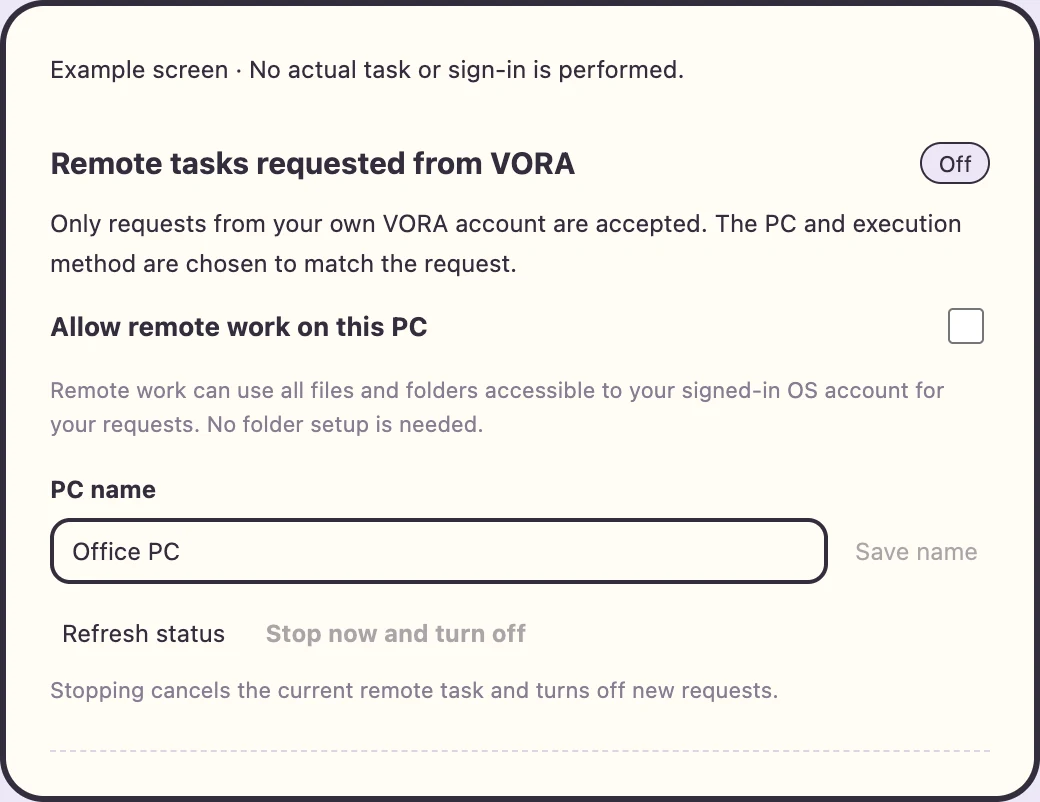
Remote CUA starts with preparation on the working PC, followed by an @vivi request in a normal VORA chat, including from another device. Complete A–C on the working PC, then use the requesting device from D onward. These steps follow the current app source; also read the availability note at the end of this chapter for your installed release.
A · Working PC: install and connect the same VORA account
- Install and launch VIVI on the PC that will perform the work. Sign in with the same VORA account you will use to send requests and complete the initial connection.
- Choose a recognizable name such as Home Mac or Office Windows if you have multiple PCs. Keep the PC powered on, connected to the internet, and running VIVI during work.
B · Working PC: approve OS permissions yourself
- Open computer use → Check permissions again. Follow the OS instructions above: Screen Recording and Accessibility on macOS, an active desktop and ordinary app privileges on Windows, or the session and portals on Linux.
- Handle any OS consent prompt on that PC. If a restart is required, restart VIVI and recheck until permissions are ready.
C · Working PC: enable remote access and check the PC name
- In VIVI settings, open requests from VORA to this PC and enable Allow remote work on this PC. It is off by default. After account and OS checks pass, CUA is enabled too.
- Save a PC name of 1–80 characters. No folder registration is needed to find files.
- Refresh the status and confirm it is ready for requests. Wait while connecting, or resolve the reason shown if attention is needed. For app control, also prepare a usable signed-in desktop and the target app.
D · Requesting device: send @vivi from a normal VORA chat
- Open VORA on your phone or another PC and enter a normal chat with your AI using the same account as VIVI on the working PC.
- Keep the first request narrow: “@vivi list only the PDF filenames and modification dates in the Reports folder on Office Windows.” Use your actual PC name and folder location.
- For a screen check, specify the result: “@vivi capture the current screen on Office Windows and send it as a PNG.” For app work, name the app, task, and save location and check the supported scope.
- Check the acceptance notice. It means the request was received, not completed. Do not immediately send the same request again.
E · Review the result, then stop or disable if needed
- Open the completion or failure notice and check the PC, folder, and result in the VORA VIVI task conversation. Existing files arrive as attachments; check the result conversation and AI Creations for new documents or PNGs, and open the actual files.
- Start additional PC operations with a new @vivi request. Continue summaries or explanations of received results in normal chat. If work fails, resolve the account, permission, folder, or connection issue before retrying.
- On the working PC, use the remote setting to stop immediately and disable requests. This stops current remote work and new requests. Repeat the readiness checks before enabling it next time.
| Setting | What to do | Ready condition |
|---|---|---|
| VORA account | Use the same account in VIVI and the requesting normal chat | Accounts match and VIVI is connected |
| Allow remote work on this PC | Enable it under Request work on this PC from VORA | Account and OS checks pass; remote work and CUA are enabled |
| PC name | Enter a distinct name and save it | For example, Office Windows or Home Mac |
| Refresh status | Check the connection after changing settings | Ready for requests; resolve any Needs attention explanation |
| Keep running | Check sleep, power, network, and VIVI | The PC is on and VIVI is running when work is requested |
Only PCs permitted under your own account can receive requests. The PC and execution method are chosen for the request, so specify the PC name, folder, and app when you have multiple computers. Remote permission does not remove local CUA approval boundaries.
10Request files without folder setup
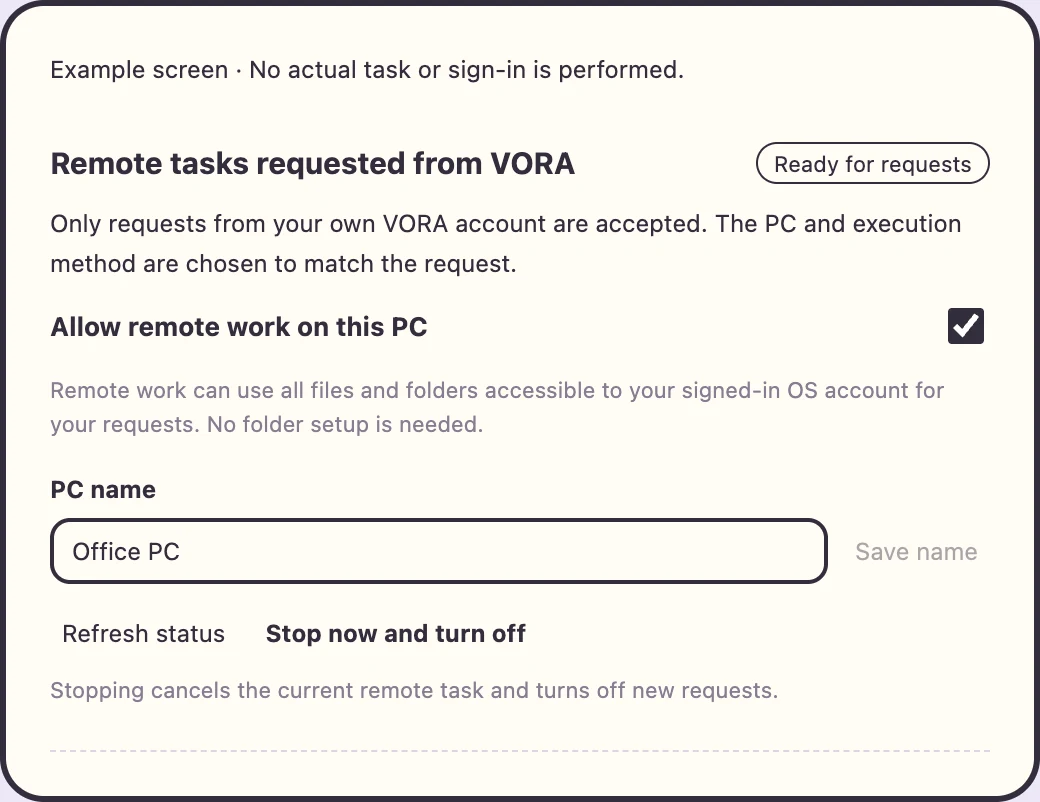
All files and folders accessible to the signed-in OS account are available. No folder registration or folder-count limit applies.
- Enable remote work to find requested files across drives accessible to your OS account.
- Name the PC, location and result. For example: “@vivi send the latest sales PDF from Documents/Reports on Office PC.”
- Keep external disks and network folders connected. If a file cannot be opened, check its current path and OS permissions.
11Call @vivi from VORA normal chat
Start your message with @vivi. The answer you quoted (or the latest one on screen), up to six messages from this conversation, and your current attachments go along. Try: “@vivi look at the answer above and the attachments, then write it up as a document.”
- Open normal chat with your own AI in VORA.
- Write @vivi followed by the request. Include the PC name, app or folder, action, and desired output.
- Send it and check the acceptance notification. The input may clear on acceptance. Acceptance is not completion.
- Open the completion or failure notification and inspect the actual result. Revisit it in the VORA VIVI task conversation.
Template: @vivi On [PC name], use [folder or app] to [specific action] and return [a listing / original file / PNG / new document].
Send a new @vivi request for another PC action. Discuss, summarize, or compare a received file in normal chat. If the target is unclear or the PC is offline, read the explanation and refine the request.
For the enrolled PC account, enter its password in the separate form; expand account options only if a username is needed. Follow the actual form for older versions or special OS states. The request resumes when VIVI is ready in that same user session. Never enter passwords in chat.
Pre-login, signed-out and locked states
- What travels with @vivi: the answer you explicitly quoted (or the latest main answer on screen), up to six messages from the current conversation, and your attachments. Files you just attached and files from recent context come first, up to ten in total. If older messages or files are left out, you're told. Referenced messages are checked against the originals. Your whole history is not sent, and unrelated older VIVI results don't come along automatically.
- The request box keeps only your request and file links; attachment analysis travels separately as reference material. The regular-chat analysis is reused with full, partial, failed or unavailable labels. Long attachments are marked as partial; an oversized anchor answer gets a clear size notice.
12Remote examples: files, screens, research, documents
| Purpose | Example request | Check |
|---|---|---|
| Listing | @vivi List PDF names and modification dates in the Reports folder on Office PC. Do not send the originals. | The listing and search scope. |
| Original file | @vivi Send the newest sales PDF from the Reports folder on Home Mac as an original attachment. | The correct original file. |
| Capture | @vivi Send my PC’s current main screen as a PNG. / Send each connected monitor separately. | Main screen by default; supported displays and any partial success. |
| Research | @vivi Use my PC browser to summarize three leading news stories with sources. / Compare ten low-priced complete drones on Amazon, excluding parts. | Sources, check time, and accessible scope; no worldwide lowest-price guarantee. |
| Word | @vivi Create a new one-page onboarding guide in installed Word, including a title, items to bring, and the first-day schedule. Send the file. | The new file, page count, and content. |
| Excel | @vivi Create a new Excel file with sales of January 120, February 180, and March 150. Add a bar chart, label the unit as USD, and send the file. | The supplied values, units, and chart in a new file. |
Capture support depends on the OS and monitor configuration. Do not assume every display is supported on every OS; read omissions and partial-success reasons. Word and Excel require installation, sign-in, and licensing on the target PC. Review the new task document before using it.
13Acceptance, completion, and file destinations
| Status or output | Meaning | Next step |
|---|---|---|
| Accepted | The request was received; success is not confirmed. | Wait for a result or explanation. |
| Listing or research | Content and scope appear in the task conversation. | Review sources, dates, and omissions. |
| Found existing file | The requested original is attached. | Check its name, format, and content before downloading. |
| New document or PNG | Available in VORA AI Generated Files and the result conversation. | Open and review the actual file. |
| Partial success or unable to proceed | Permissions, apps, connectivity, or target details limited execution. | Review what succeeded and why the rest failed; correct conditions before retrying. |
If you miss a notification, check the VORA VIVI task conversation and AI Generated Files. Check existing acceptance and results before sending the same task again. Use normal chat for questions about content, and a new @vivi request for another PC action.
14Stop remote work and read status
Stop now and turn off in remote settings cancels the current remote task and disables new requests. Recheck authentication, permissions, and folders before enabling it again. Local CUA has its own stop control.
| Status | What to check |
|---|---|
| Off | Remote requests are disabled. Turn on when needed. |
| Connecting | Check authentication and network, then wait. |
| Ready for requests | Ready to accept requests, not a guarantee of individual task success. |
| Working | Wait for the current result. Retry after conflicting work finishes. |
| Needs attention | Check sign-in, OS permissions, folders, connectivity, and the displayed error. |
A sleeping, powered-off, offline PC or closed VIVI cannot perform remote work. After recovery, verify VIVI is running and ready. Check previous results rather than assuming interrupted work finished.
Signed out, locked, another user, a detached screen and offline are different states. Basic OS sign-in requires the enrolled local account password and a supported setup on the selected PC. The request continues only after VIVI is ready in that same user session.
15Use saved website accounts
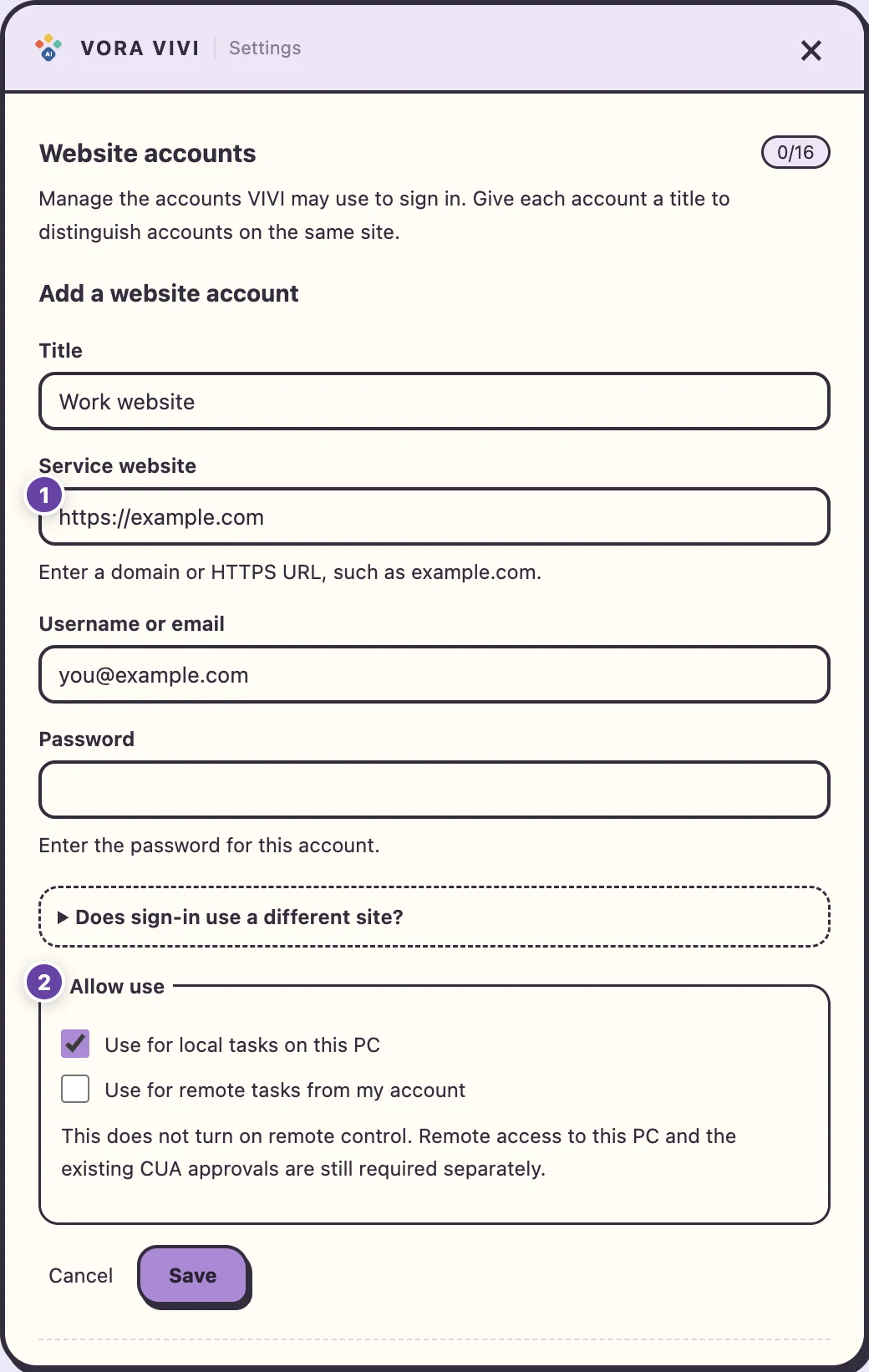
- On the PC running VIVI, open Settings → Website accounts → Add account. Enter a title, service site, username, and password. Distinguish accounts on the same site with titles such as Work or Personal.
- Add extra login or SSO sites only when they differ from the service. Limits are 16 accounts and 8 additional login sites per account.
- Choose local and remote use separately. New accounts allow local use and disable remote use by default.
- Select the account in local CUA, or request “@vivi Sign in to my Work portal account and …”. Remote use needs PC remote permission, account remote permission, and CUA approvals.
| Account field | Input and scope |
|---|---|
| Title | Distinguish accounts on the same site, such as Work and Personal |
| Service site | A service domain or HTTPS URL |
| Username or email | The value used to sign in to that site |
| Password | Required for a new account. Leave blank when editing to keep the saved password |
| Additional login sites (optional) | Only when login/SSO differs from the service; one per line, up to 8 |
| Use for local tasks on this PC | Makes the account available to local CUA; enabled by default for a new account |
| Use for my remote tasks | Separate permission for remote use; disabled by default for a new account |
Passwords stay in the installed PC’s macOS Keychain, Windows Credential Manager, or Linux Secret Service; they are not sent to AI or VORA servers or automatically synced to another PC. Titles and sites may help select an account. Complete extra authentication and CAPTCHAs yourself. Editing or deleting an account also revokes its dedicated session; it does not delete your website membership.
After saving, check the title, site, and local/remote permission indicators. Edit to change details or scope, or delete an unused entry. Register and update accounts on the installed PC without sending passwords through normal chat. Register separately on another PC if needed.
16Add, edit, and delete card information
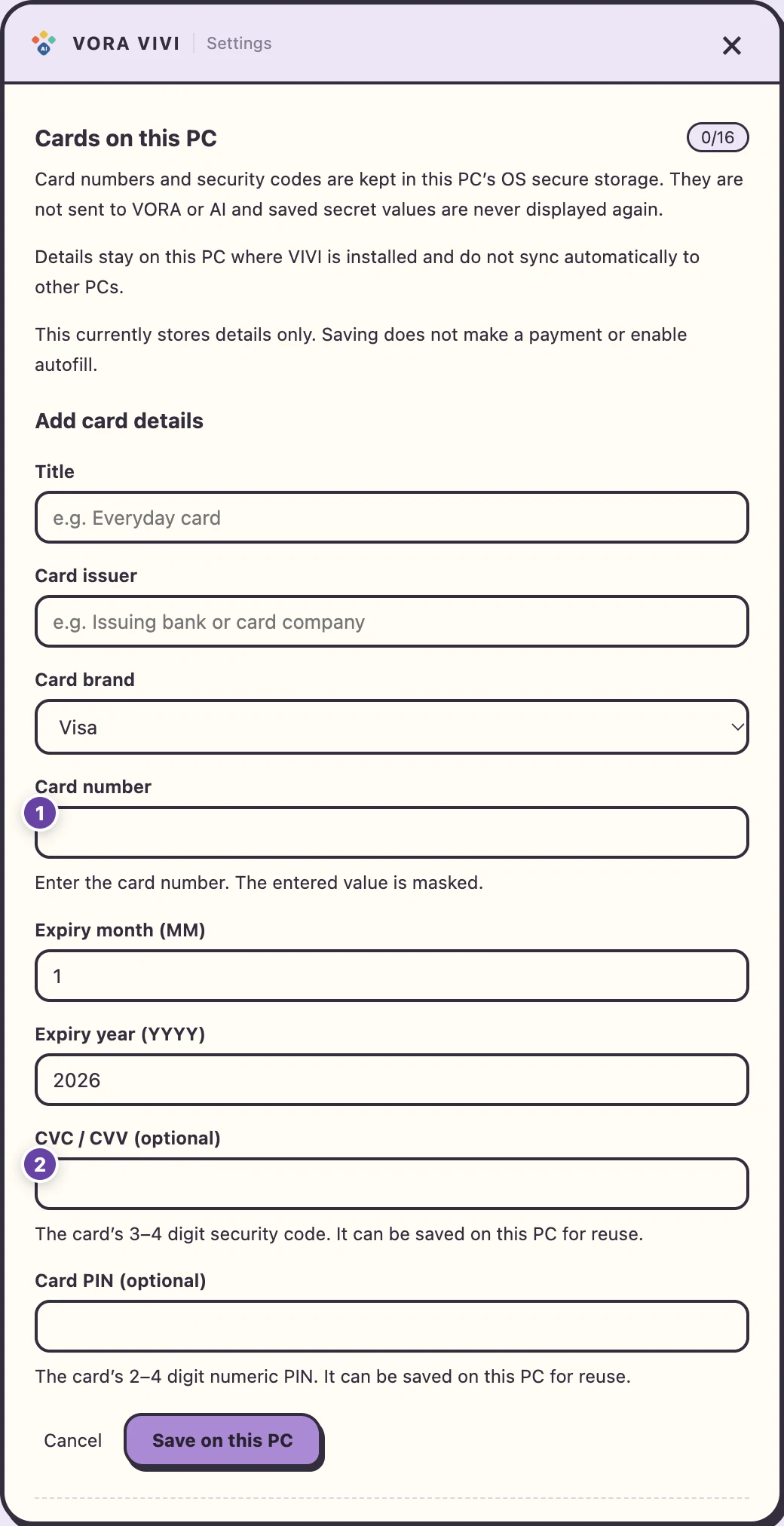
Authenticate your VORA account in installed VIVI, then open Settings → Cards on this PC. Registration is not available in the web preview. If the setting is absent in your installed release, check official update availability.
- Choose Add card. You can store up to 16 cards.
- Enter a title, issuer, brand, card number, and expiry month/year. CVC/CVV and card PIN are optional.
- Choose Save on this PC and confirm the saved notice. Card numbers and secret inputs are masked.
- Check the title, issuer, brand, last four digits, and expiry in the list. CVC and PIN show only whether they are saved; secret values are not displayed again.
| Field | What to enter |
|---|---|
| Title | A recognizable label, such as Household or Work |
| Card issuer | The issuing bank or card company |
| Card brand | Visa, Mastercard, American Express, JCB, UnionPay, Discover, Diners Club, or Other |
| Card number | Required for a new card. Digits, spaces, and hyphens are accepted, subject to validation |
| Expiry month and year | Month 1–12 and a year in YYYY format |
| CVC / CVV (optional) | 3–4 digits. You can save the card without this field |
| Card PIN (optional) | 2–4 digits, separate from a website login password |
When editing, leave the card number blank to retain it. Blank CVC and PIN fields also preserve saved values. To remove them, select the corresponding Delete saved CVC or Delete saved card PIN option and save. Changing to a different card number deletes old CVC/PIN values unless you provide replacements.
Delete opens a confirmation screen. Confirming removes the number and security codes stored on this PC. It does not cancel the physical card or any payment. Use Cancel to close an edit without saving.
Card numbers and secret values stay in this PC’s OS secure storage. They are not sent to VORA or AI and do not automatically sync to other PCs. Register through app settings, not by putting numbers, CVC, or PIN in chat or an @vivi request. If secure storage is unavailable, unlock it and retry. Reauthenticate and refresh the list after an authentication change.
17Chat, HYPER RAG, and tool links
- Click the character to open an input bubble. Use the larger conversation window for long answers.
- Use HYPER RAG and relevant material for questions about your knowledge. Check Supported tools for availability under your current account.
- Read the full streamed answer and continue with related questions or a new request.
- DOCS and @tool URLs remain in answer cards. Click the card you want to open in your browser; windows do not open automatically.
Starting or clearing the current conversation resets the current draft, attachments, and response. It does not mean deleting all VORA service history. Start another actual PC action through computer use or @vivi in VORA.
18Ask with files and save a conversation
- Add files with the attachment button or drag and drop, and wait for upload completion.
- State both the material and desired result, such as “Summarize this document’s conclusions and supporting tables.” Follow the formats, sizes, and counts shown for your account.
- Choose an available conversation export format, such as PDF or DOCX, and verify the saved file. Conversation files saved to VORA appear in AI Generated Files.
An existing file found remotely is returned as an original attachment. It can have a different destination from a newly created document or capture. Continue discussing or summarizing a received file in normal chat.
19Voice input and spoken summaries
- Check your microphone, output device, and voice options in Settings. Allow OS microphone access when using voice input.
- Record with the microphone button and review the recognized question. Correct mistakes in text before sending.
- The screen retains the full answer while speech can provide a short summary. Use voice input and playback as needed.
Screen Recording and Accessibility are for CUA; microphone permission is for voice input. They are separate. If recording fails, check the selected input device, mute state, and OS microphone permission.
20Calendar, VORA notifications, and quiet hours
Enable VORA and calendar notifications in Settings. Google Calendar reminders use calendars connected and permitted in VORA. Choose the Google reminder settings or a custom advance reminder time.
Adjust quiet hours and speech to your routine. An announcement animation alone does not prove that a calendar event was created or a task succeeded; read the actual notification.
Open remote results from VORA notifications and revisit the VORA VIVI task conversation. If notifications are missing, check notification settings, account connection, and whether the PC is running.
21Character customization and everyday motion
External packs can replace appearance, outfits, and full-body animation while keeping your VORA account and AI connected. You do not need to enable CUA or remote access to customize the character.
The default character responds to idle time, listening, typing, searching, file carrying, notifications, completion, error recovery, and CUA approval waits. Bubbles, paper planes, a toy fish, box peeks, and yo-yo play include preparation, play, cleanup, and return.
Settings include reduced motion, holiday costumes, language, region, and theme. Date and time changes follow pack rules and the PC’s local clock. Animation alone is not proof of task success.
22Import, apply, and switch character packs
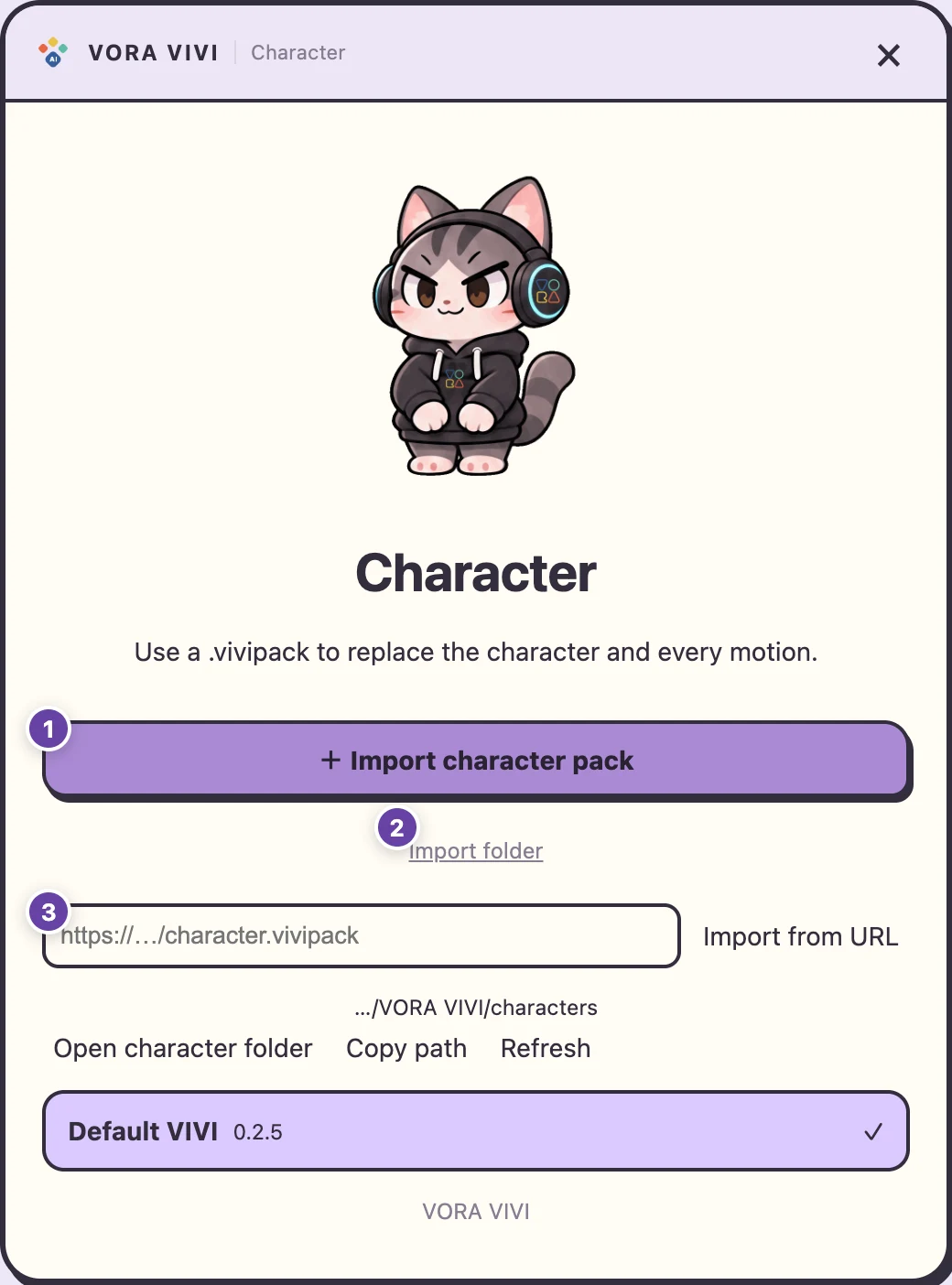
- Download the full default pack from the official customization page, or prepare a compatible .vivipack.
- Right-click VIVI → Character → Import pack and select it. Folder import or HTTPS pack URL import are also available in the character panel.
- After validation, check the pack name, version, selection marker, and actual character on screen.
- Select the default VIVI or another installed pack to switch back. Refresh the list after placing a pack manually.
Invalid packs are rejected while the current character stays active. Do not edit the app’s bundled default resources. The official full-pack download includes artwork, transitions, and JSON together.
23Character folders by operating system
Right-click VIVI → Character → Open character folder for the exact location on the current PC. You can also copy the path.
| OS | Default location |
|---|---|
| macOS | ~/Library/Application Support/im.vora.vivi/characters/ |
| Windows | %APPDATA%\im.vora.vivi\characters\ |
| Linux | ~/.local/share/im.vora.vivi/characters/ |
Place <packId>/<packVersion>/character.json below that directory. On macOS use Finder → Go → Go to Folder; on Windows paste the path in File Explorer. XDG_DATA_HOME takes precedence on Linux when configured. These folders belong to the current PC and user; import separately on another computer.
24Create your own character pack with AI
- Get the full sample pack, JSON schema, and English creation SKILL.md from the official customization page.
- Give the skill and your reference character image to an AI service that can generate images and output files.
- Ask it to create full-body artwork plus entry and return transitions, verify transparent backgrounds and a 160px preview, and deliver a .vivipack.
- Change packId to your own unique identifier and increase packVersion. Do not replace an existing ID/version with different content.
- Import the finished pack and inspect idle, work, interruption, and return at actual size on light and dark backgrounds.
Image-generation capabilities, file output, and fees depend on your chosen AI service. JSON alone does not create artwork. You do not need to rebuild the app or put API keys in a character pack.
25Pack structure and validation
| Item | Purpose |
|---|---|
| character.json | Pack ID, version, names, clips, events, transitions, and outfit rules. |
| clips/<motion>/frames.json | Frame file order and timing. |
| PNG or WebP artwork | Full-body frames with equal canvas dimensions and transparency. |
| checksums.json | Optional per-file SHA-256 values; update after edits. |
| .vivipack | A ZIP of the character folder contents with character.json at the archive root. |
Paths are relative to the pack root. Match frameCount to the frames array, preserve filename case, and ensure eventBindings refer to registered clips. Use images and JSON without scripts or executables. The extracted pack limit is 512MiB.
A personal pack may omit checksums.json. If included, recalculate affected hashes after changing artwork. Avoid an extra enclosing directory that hides character.json below the ZIP root.
26Full-body artwork, transitions, and size
- Use equal transparent canvases and full-body frames where the face, body, paws, and props move together.
- Artwork can be up to 2048×2048. Display height is 80–320px; inspect at the recommended 160px size.
- Each clip contains 1–240 frames, each lasting 16–30,000ms. Set frameCount to the actual count.
- anchor is the foot reference and bubbleAnchor is the speech-bubble reference, both in 0–1 coordinates. Align grounding and transparent margins across frames.
- Looped clips need matching entryPose and exitPose. Draw full-body transitions between different poses and register entry and return paths in transitions.
Do not substitute a shaking still, rotated limb pieces, or a simple fade for complete full-body motion and transitions. Check loop boundaries, interruption, and return for flashes, jumps, scale changes, and ghosting. A missing outfit transition can leave the current pose in place instead of synthesizing artwork.
27Event-driven motion and file carrying
| Situation | Example events |
|---|---|
| Idle and routine | idle, idle.rest, idle.groom, idle.stretch, idle.sleep |
| Questions and answers | chat.waiting, chat.streaming, chat.complete, chat.error, chat.cancelled |
| Input and speech | input.listening, input.transcribing, tts.speaking |
| Files | file.uploading, file.saving, and single/multiple-file events |
| Notifications and CUA | notification, calendar.reminder, cua.working, cua.awaiting-approval, cua.complete |
| Media and data | media.image, media.video, media.audio, data.table, data.chart |
| Answer types | answer.weather, answer.news, answer.stocks, answer.academic.paper, answer.academic.patent |
Events describe app situations; clips contain the actual artwork sequence. Several events may share a clip, and a fallback may be used when dedicated artwork is absent. Link real clip IDs through eventBindings and variant clipBindings.
The default pack carries one validated file in a box and two or more in a small truck. That choice stays stable as a batch progresses; files added during work form a later batch. Motion counts and newly drawn artwork counts are different measures.
28Time, season, region, and outfits
Language and country are separate settings. Variants can combine hours, weekdays, months, seasons, dayparts, region, dates, and priority. Combined conditions must all match; the highest-priority matching variant is selected.
| Rule | Meaning |
|---|---|
| Dayparts | Morning 05–10, day 10–17, evening 17–21, night 21–05. Start inclusive, end exclusive. |
| Specific hours | [22, 6] can cross midnight. The default night outfit currently uses 22–06. |
| Weekdays and seasons | Sunday is 0, Saturday 6. Default northern seasons: spring March–May, summer June–August, autumn September–November, winter December–February. |
| Holidays | Default KR, JP, US, and GB data covers 2026–2027. Memorial days do not trigger festive dress; new exceptional holidays need data updates. |
Actions change too: waking and stretching in the morning, desk work and study during the day, rest and music in the evening, and sleep at night. Rules use the PC’s local clock and are reevaluated periodically and on app return. Work, speech, or notifications interrupt idle motion. Preview outfits and their return transitions on the official page.
29Add motion for new answer categories
- Add an ID, ko/ja/en names, description, queryExamples, and evidenceHints to character.json answerCategories. IDs start with a lowercase letter and use letters, digits, and hyphens, up to 40 characters. A pack supports up to 16 categories.
- Provide 1–6 query examples and 1–6 evidence hints. Use evidenceSource: answer for the completed answer, or tool-result when actual tool evidence is required.
- Register full-body clips and bind them to answer.custom.<id> in eventBindings. Include entry/return transitions and a fallback.
- With several clips, choose randomly from reachable candidates and avoid the previous one when alternatives exist. Selection does not change on every token or frame.
- Test matching and unrelated questions, cancellation, new conversations, logout, and pack changes. Verify stale performances do not return, then increase the version and import.
Built-in weather, news, patent, academic-paper, and stock motion uses both question intent and actual tool results. Mere mentions, translations, or summaries of existing material do not qualify. Extensions are presentation data, not permission to run tools, access files, or control the computer.
Travel category extension example JSON · Answer-style definitions
30Troubleshoot CUA and remote work
| Symptom | Check in order |
|---|---|
| Cannot enable remote work | Reconnect the same account → OS screen/accessibility permissions → restart → recheck → enable remote work. |
| PC missing or offline | Power, sleep, network, VIVI → account match → ready status → a distinct PC name. |
| File not found | Current path and disk → OS permissions → filename, extension, date → duplicate names. |
| Target app or document cannot be found | Confirm it is in the same signed-in session → include app and document names → check status and errors. |
| Background unsupported | In Auto mode, check the foreground-control notice on this PC. If you selected Background mode, start a new task in Foreground mode or act manually. |
| No Word/Excel result | Installation, sign-in, license → actual data and requirements → failure reason in notification. |
| Only some captures arrive | Requested monitor scope and OS support → partial-success reason → specify needed displays. |
| Accepted but no result | Existing task conversation and notifications → PC connection and state → resolve conditions before retrying. |
| macOS settings opened but permissions still missing | Enable both Screen Recording and Accessibility → confirm the current VORA VIVI copy → restart the app → recheck. |
| VIVI is absent from macOS settings | Open the relevant permission setting from VIVI → use Add (+) in Accessibility to select the installed app → allow → restart. |
| Windows stops at UAC or an elevated app | Handle the OS prompt yourself → return to an ordinary app → recheck permissions and target app state. |
| Linux sharing is allowed but input fails | Check Wayland/X11 → grant the required screen and session → check AT-SPI and control-mode support. Use a supported environment if needed. |
| A remote request is waiting for OS consent | Handle the prompt on the working PC, not the requesting phone → recheck VIVI permissions → refresh remote status and retry. |
When reporting a problem, record the OS, VIVI version, time, local or remote mode, request, and status/error text. You do not need to share passwords or an entire sensitive screen.
Service, startup, firewall and power guidance
Pre-login, signed-out and locked states
When a task ends, VIVI reports what actually happened. If it needed a Mac Automation permission for a specific app and didn't have it, the result names exactly what's missing and points you to the setting. If computer use is off, your request is kept, and once permissions are actually ready the original task runs once. VIVI won't repeat an input automatically when it can't tell whether it went through, and changing a permission never silently replays a failed input. Just ask again if you want a retry.
31Troubleshoot character packs
| Symptom | Check |
|---|---|
| Missing from list | character.json location, packId/packVersion directories, import result, and list refresh. |
| Validation failure | Required JSON fields, references and filename case, actual frame count, size, and checksums.json. |
| Clipping or jumping | Equal canvases, transparent margins, anchor, foot grounding, and 160px display. |
| Broken transition | A transitions path and real artwork from the previous exitPose to the next entryPose. |
| Hash mismatch | Update changed files’ SHA-256 values. A personal pack may omit optional checksums.json. |
| Outfit does not change | Language versus region, local clock, holiday setting, priority, and outfit entry/return paths. |
| Answer motion missing | Question, completed answer, tool evidence, category/event IDs, reachable transitions, and fallback. |
Compare with the default pack to isolate problems, then repair your pack. Check light and dark backgrounds, loop boundaries, cancellation, and return after a new conversation.
32Frequently asked questions
Will VIVI control my computer on its own?
Computer use and remote work are off by default. You enable them, set the target, task, and permissions, and use approval and stop controls.
Does enabling remote work also enable CUA?
Yes. CUA is enabled after account and OS checks. OS approvals such as macOS Screen Recording and Accessibility are separate. No folder registration is needed.
Can @vivi work while my PC is off?
No. The target PC must be powered on, connected to the internet, and running VIVI. App control also needs a usable desktop session.
Can I use a friend’s PC or another account?
Only a PC signed in to your own VORA account with remote permission enabled is eligible. A friend’s or unapproved PC is outside the scope.
Do I need to sign in every time?
Initial registration and authorization are required. Staying signed in allows reconnection. Signing out or revoking access requires authorization again.
What about mobile and changing characters?
The installed app is desktop-only. Import packs on the PC. Character changes are independent of CUA and remote permissions.
33Official resources, downloads, and full catalog
Prepared against the official introduction and customization pages and VORA VIVI settings, permissions, and pack specifications on 2026-11-13. Verify released feature availability and actual task results in your installed version and environment.