
VORA WORD (@voraword)
Start VORA WORD with @voraword. Learn connected AI, Smart mode, generation, revisions, and original preservation, attachments, standalone use, and background Auto mode. Installed apps support offline editing; AI and VORA export require free signup and a VORA web launch.
VORA Chat and Tool Demo
VORA WORD (@voraword) — workflow demo
Start VORA WORD with @voraword. Learn connected AI, Smart mode, generation, revisions, and original preservation, attachments, standalone use, and background Auto mode. Installed apps support offline editing; AI and VORA export require free signup and a VORA web launch.Choose a real request from this guide and preview the flow from input to result.
This demo stays in your browser; it sends, saves, and charges nothing.
Send a request to see the processing flow and output format for this tool.
@voraword : How competitive is Tesla in its industry? Write a two-page report with evidence and a comparison table.
- 1Check request scope
- 2Create draft or session
- 3Prepare dedicated workspace
- 4Return new-tab URL
VORA chat input@voraword : How competitive is Tesla in its industry? Write a two-page report with evidence and a comparison table.
https://guide.vora.im/en/tools/word-generation/#workspace-demoOpen in a new tab ↗ ⓘ AI features and “Export to VORA” are available only after signing up for the free VORA service and launching the tool’s web version from VORA while connected to the internet. These features are unavailable in downloaded apps or a directly opened standalone web version. An actual editing screen in the Korean UI.
Live results vary with the source material, request, and time of use.
Getting started with VORA WORD
A document editor for reports, proposals, and meeting minutes, with control over paragraphs, tables, images, and page layout.
Download and install the app for your OS (macOS, Windows, or Linux) from VORA WORKS to edit documents and save locally without an internet connection. Check the download page for each product’s release and download availability.
Download apps for your OS · VORA WORKS
Sign up for the free VORA service
Start a blank document or open a file from the File menu. Starting from VORA chat can carry your request and selected references into an AI-enabled session.
Auto mode: background generation
Send @voraword with your topic or attachment and ask for background generation. This delegates creation and DOCX saving without walking through the editor.
Background results are saved on VORA’s AI Creations page. An acceptance notice is different from completion; open the saved file to review its content and layout.
Launch with @voraword or open the app directly
| Input | Workflow |
|---|---|
| @voraword | Open the editor without a generation request. No topic or greeting is needed. |
| @voraword : … | Add your question or writing goal, then check the request in the returned editing link. |
| @voraword : Create from the attached document | Choose the reference file and specify format, language, and length. Use a complete, accessible HTTPS URL when providing a file link. |
| @voraword : Generate in the background | Include a topic or attachment to request Auto mode. Find the completed result on the AI Creations page. |
Standard and Smart documents
To use connected AI, sign up for the free VORA service and launch the tool’s web version from VORA chat. Open the returned editor link and check that the AI assistant is enabled. Offline editing in an installed app, standalone web editing, Smart mode inside the editor, and background Auto mode are distinct workflows.
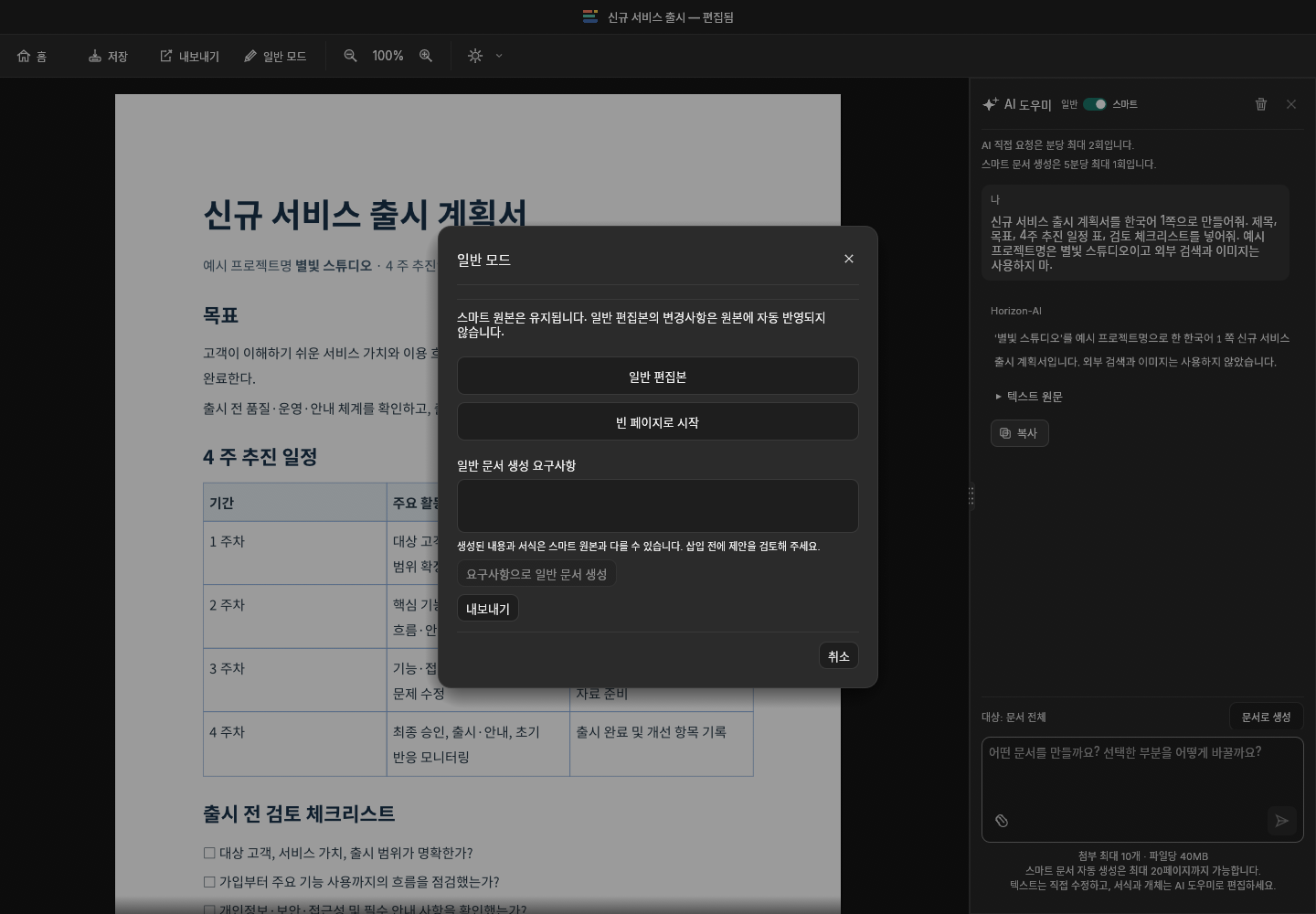
Standard mode combines detailed ribbon and keyboard editing with the AI assistant. Smart mode focuses on AI generation and selected-content revisions, and also supports direct text edits. Switching to a normal editable copy retains the Smart original; changes to the copy are not automatically reflected in it.
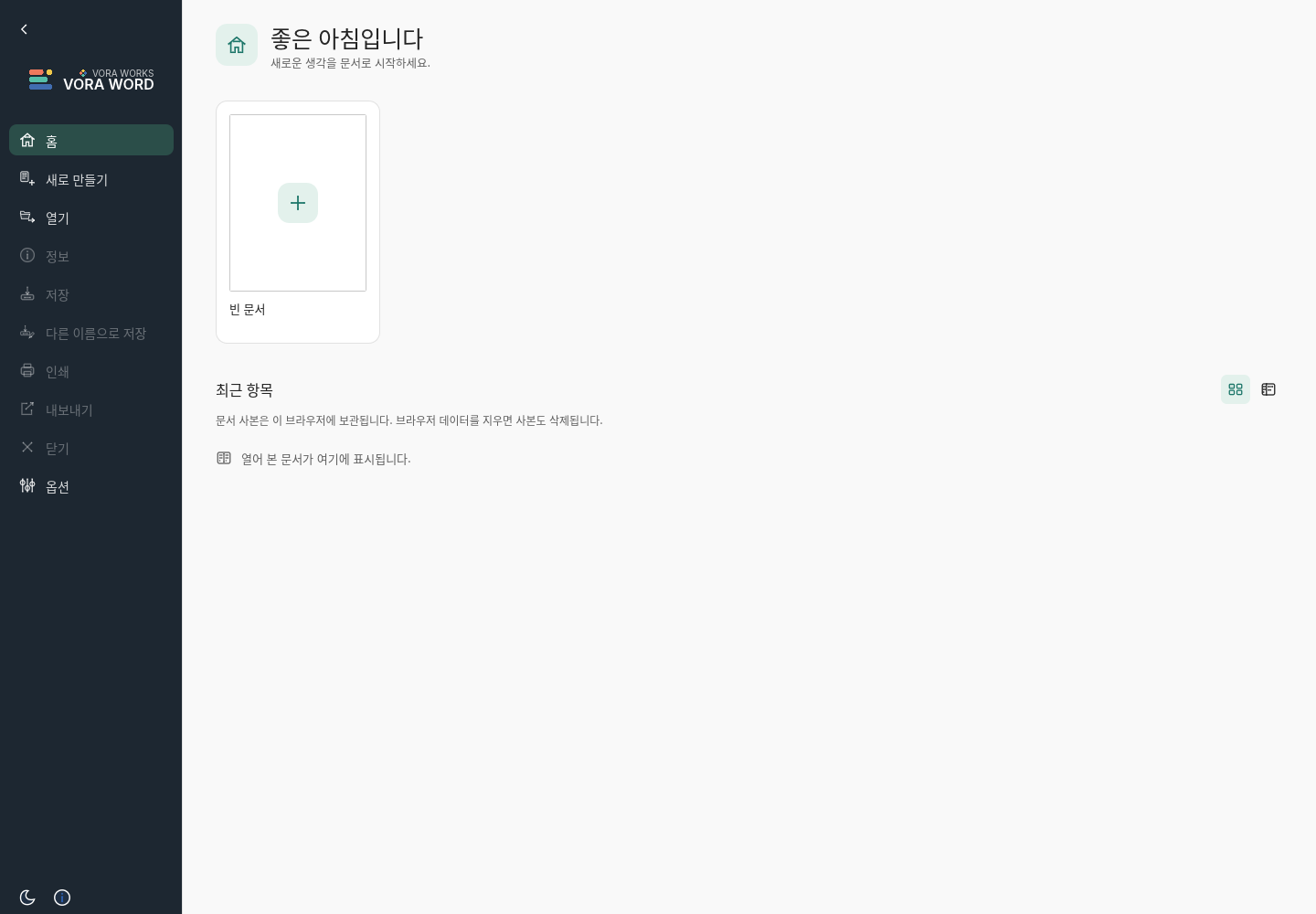
- Launch @voraword from VORA and choose a blank Smart document on Home. When using the Normal/Smart switch, save the current document first and review which content will be used for the new work.
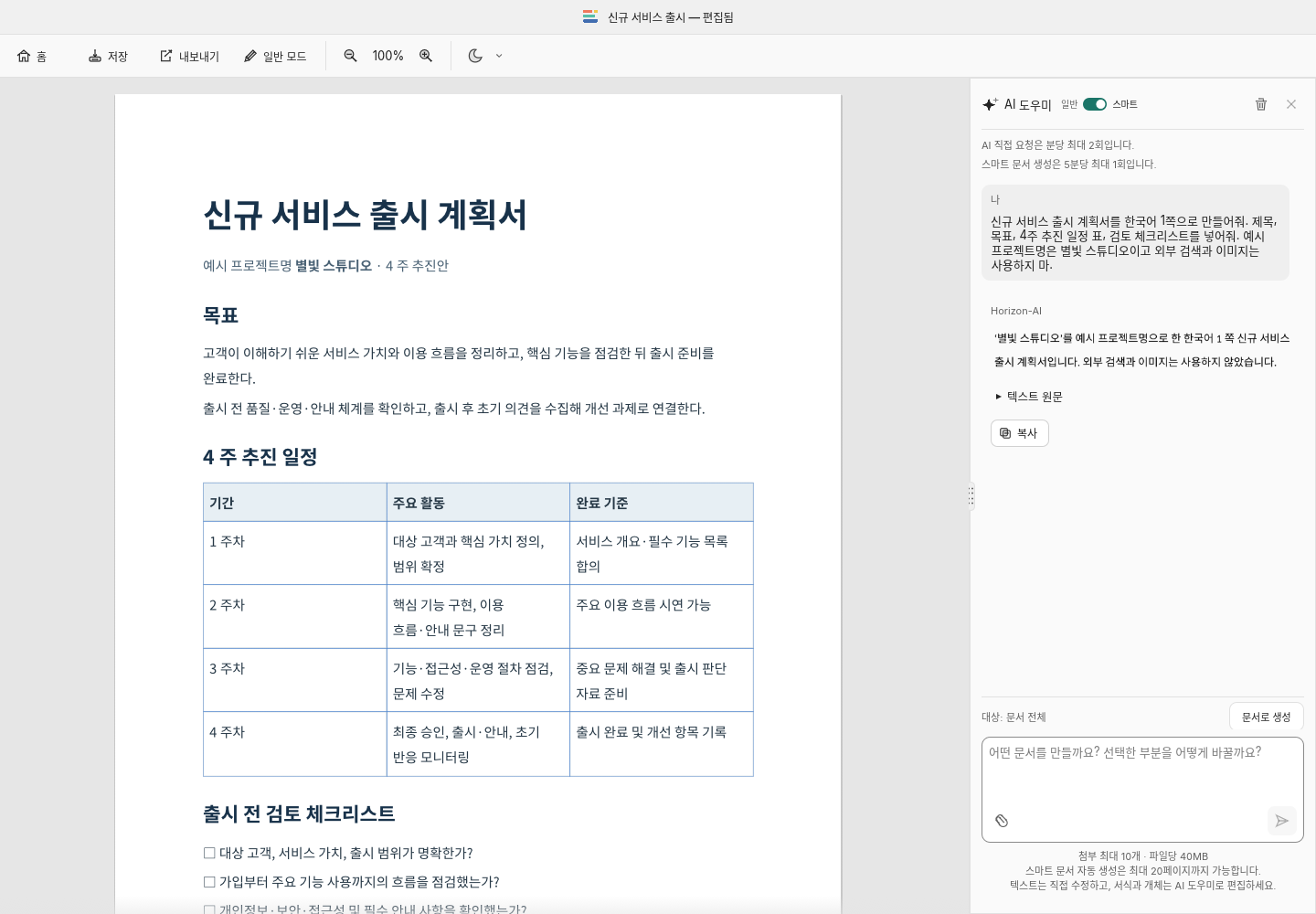
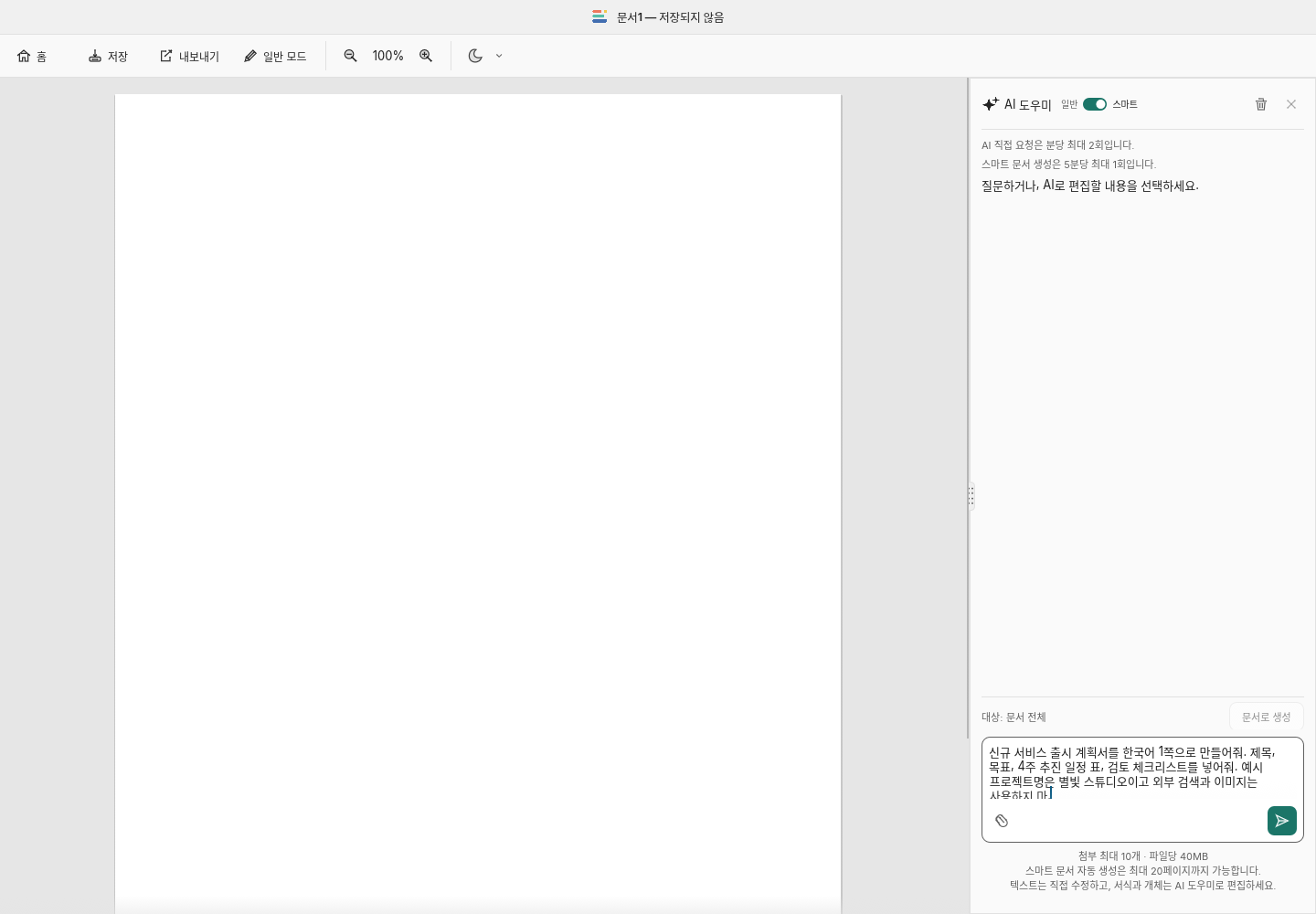
- Smart mode simplifies the ribbon so the document and AI assistant remain central. In a blank document, send the document type, audience, length, language, and required sections. For example: “Create a one-page service launch plan with goals, a four-week schedule table, and a review checklist.”
- Follow request review, document generation, layout review/correction, and saving in the progress display and draft preview. A partial preview is not the final applied document. After completion, review tables, page breaks, and clipping.
Edit selected text and objects with AI
Text can also be edited directly in the current Smart mode. For formatting, tables, images, or structural changes, select the target text or object and ask the AI assistant. Check the target shown above the input, and specify what to preserve: “Shorten the selected explanation to two sentences; keep the table values.” Generating a document from an answer starts a document task and differs from editing part of the current document.
Select the sentence, table, or image to change and describe the edit in the AI panel. Include constraints such as keeping totals while shortening the explanation. Distinguish an explanatory reply from an applied document change.
Images and references
Add a picture from Insert or request imagery in the AI panel. When candidates appear, check their source and suitability before selecting one. Adjust size, crop, and placement, then inspect surrounding text.
Smart .voraw originals and exports
The Normal mode dialog offers an editable copy, a blank page, or a normal document generated from requirements. The editable copy is a separate document for ribbon editing; the Smart original is retained. Changes to the copy do not automatically update that original. Save the ongoing AI workspace as .voraw, separately from DOCX/PDF delivery copies.
Use .voraw as the Smart working original to retain the document and AI conversation. Check the save format when using Ctrl/Cmd+S or Save, and export DOCX or PDF copies for sharing.
| Format | Use |
|---|---|
| .voraw | Keep the document and conversation for continued work in the same editor. |
| DOCX | An editable copy for other document apps; it does not include the dedicated conversation history. |
| A copy for printing and distribution. Check pagination and clipping before exporting. | |
| VORA | Save DOCX to AI Creations from a connected session. Check that registration completes. |
Writing a useful request
State what to create, who it is for, and its format and length. Identify values, tables, or terminology to keep, the scope to change, and how to handle missing evidence.
@voraword : How competitive is Tesla in its industry? Write a two-page report with evidence and a comparison table.
Insert an AI answer into the document
Check the content and insertion point before using an answer’s insertion controls. Choose the whole answer or a portion, then inspect tables, lists, and equations. Avoid inserting an already applied result twice.
Save, export, and reopen
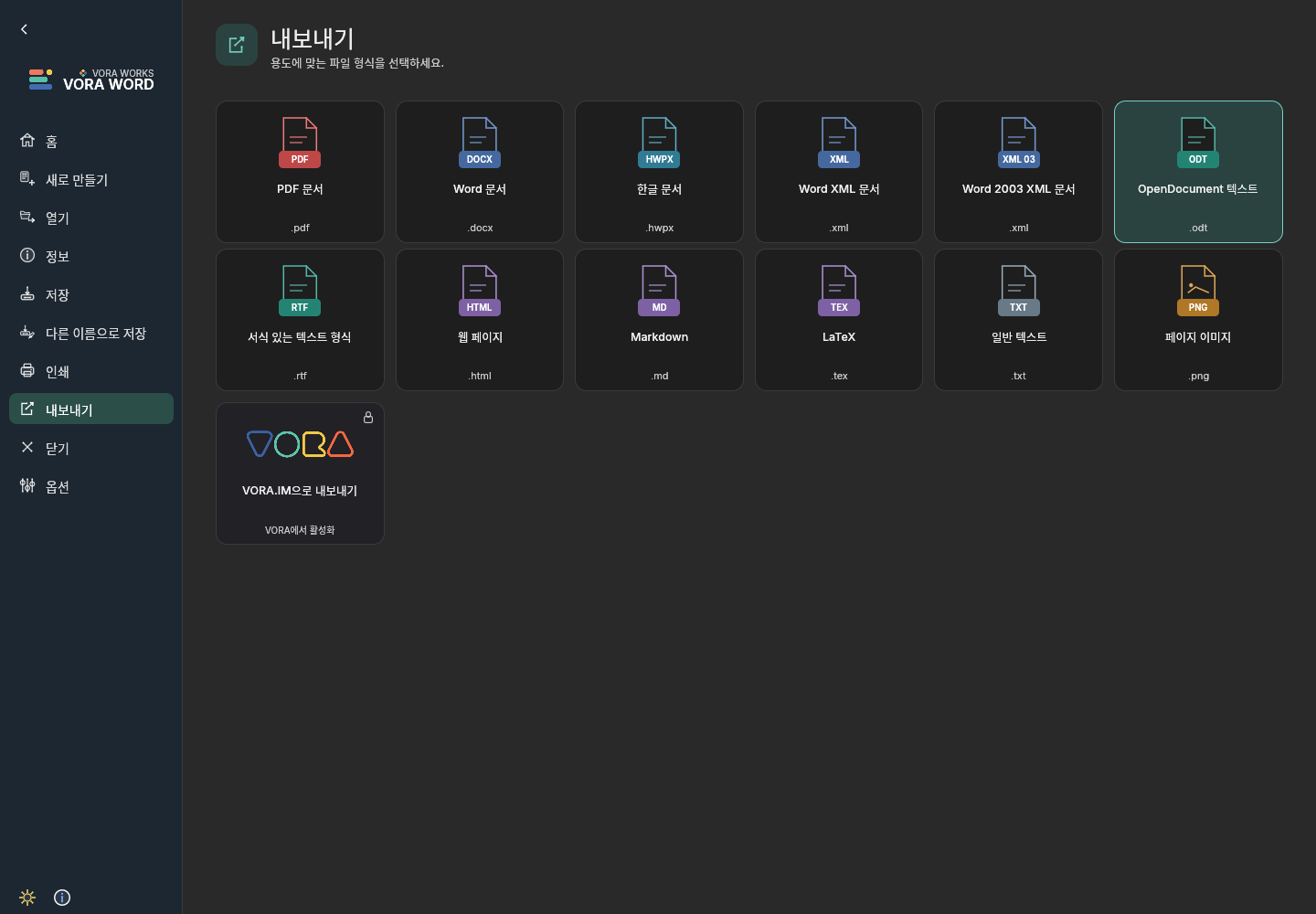
Use File → Save or Save As for a working copy. Choose DOCX, PDF, HWPX, or another appropriate export format and reopen the result. If the browser saves through a download, check the actual downloaded file.
Writing a useful request
State what to create, who it is for, and its format and length. Identify values, tables, or terminology to keep, the scope to change, and how to handle missing evidence.
Upload reusable references to the AI Knowledge Base and select the materials for this request.
Review after automatic generation
- Compare figures, names, dates, and sources with the originals.
- Check clipping, overlap, table wrapping, formulas, and fonts.
- Refine the result in the editor and save a final copy.