
DEEP GUIDE · ADVANCED
VORA SLIDE Guide (@voraslide)
VORA SLIDE (@voraslide): connected AI, Smart mode, generation, revisions, and original preservation with eight real screenshots. Includes offline apps, AI/export through the free VORA-launched web version, and Auto mode results in AI Creations.
01. Getting started with VORA SLIDE
A presentation editor for working with slides, text, tables, charts, and images, then presenting your deck.
Download and install the app for your OS (macOS, Windows, or Linux) from VORA WORKS to edit documents and save locally without an internet connection. Check the download page for each product’s release and download availability.
Download apps for your OS · VORA WORKS
Sign up for the free VORA service
Start a blank document or open a file from the File menu. Starting from VORA chat can carry your request and selected references into an AI-enabled session.
02. Launch with @voraslide or open the app directly
| Input | Workflow |
|---|---|
| @voraslide | Open the editor without a generation request. No topic or greeting is needed. |
| @voraslide : … | Add your question or writing goal, then check the request in the returned editing link. |
| @voraslide : Create from the attached document | Choose the reference file and specify format, language, and length. Use a complete, accessible HTTPS URL when providing a file link. |
| @voraslide : Generate in the background | Include a topic or attachment to request Auto mode. Find the completed result on the AI Creations page. |
03. Auto mode: background generation
Send @voraslide with your topic or attachment and ask for background generation. This delegates creation and PPTX saving without walking through the editor.
Background results are saved on VORA’s AI Creations page. An acceptance notice is different from completion; open the saved file to review its content and layout.
04. Requests using topics, attachments, and conversation
- @voraslide : How competitive is Tesla in its industry? Create six slides with evidence and competitor comparisons. Generate it in the background.
- @voraslide : Use the attached facts and figures to prepare a summary, comparison, and next actions in the background.
- @voraslide : Use the comparison table and conclusion above to create an English deliverable in the background. Label unverified information.
05. Acceptance, completion, and AI Creations
| Status | What to check |
|---|---|
| Accepted | The task has been registered; generation and saving are not yet complete. |
| Processing | Wait for completion. Repeated submissions may create separate jobs. |
| Completed | Open the PPTX file saved on the AI Creations page and check its name, contents, and download. |
| Failed or cancelled | Read the error. An acceptance card alone is not proof that a file was saved. |
06. Review after automatic generation
- Compare figures, names, dates, and sources with the originals.
- Check clipping, overlap, table wrapping, formulas, and fonts.
- Refine the result in the editor and save a final copy.
07. Home, recent files, and browser copies
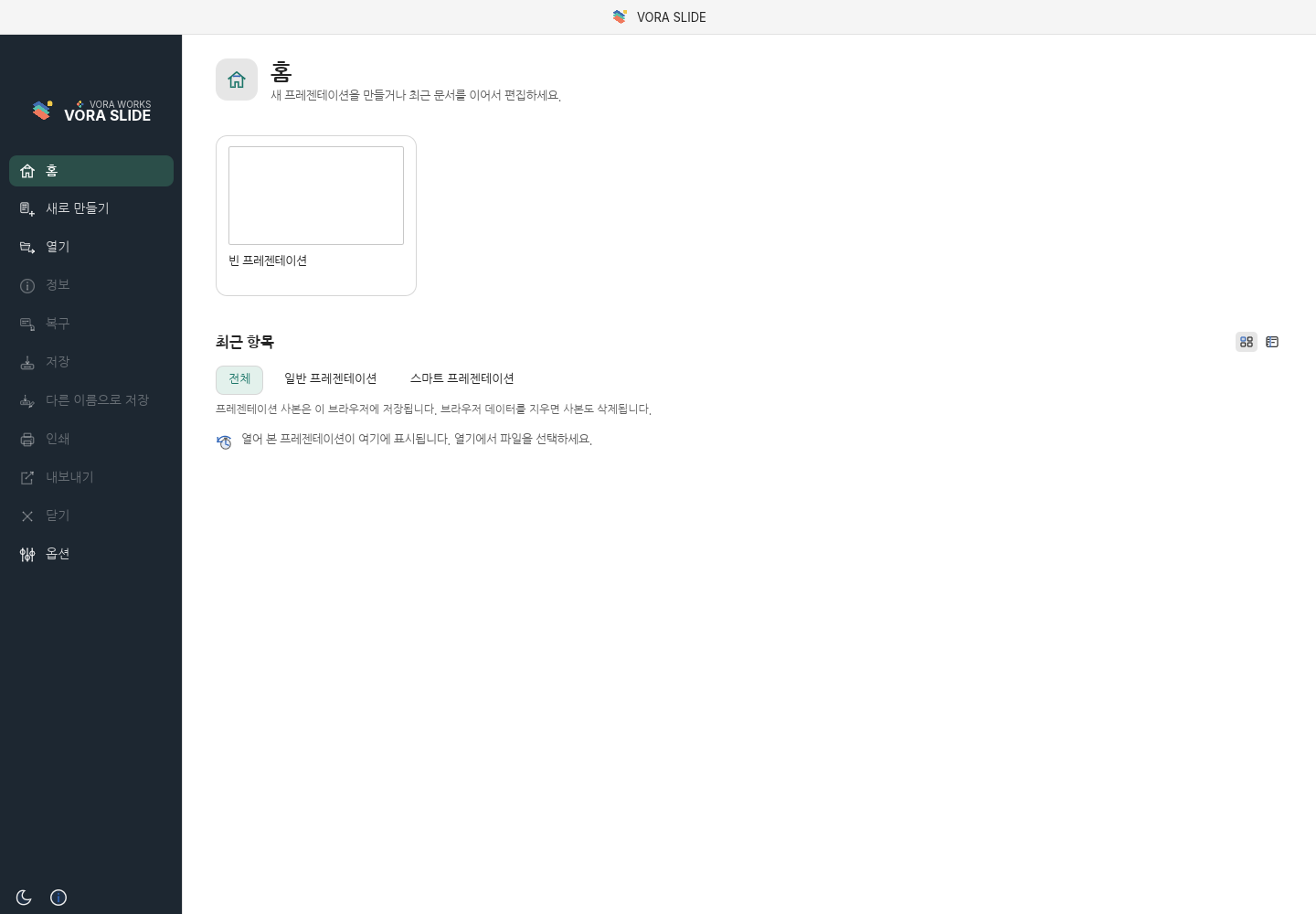
Start a blank presentation from Home and browse recent items as cards or a list. Use File → Open for an existing deck and the Standard/Smart filters to distinguish working versions.
08. Writing a useful request
State what to create, who it is for, and its format and length. Identify values, tables, or terminology to keep, the scope to change, and how to handle missing evidence.
@voraslide : How competitive is Tesla in its industry? Create six slides with evidence and competitor comparisons.
09. New presentations and generation settings
To use connected AI, sign up for the free VORA service and launch the tool’s web version from VORA chat. Open the returned editor link and check that the AI assistant is enabled. Offline editing in an installed app, standalone web editing, Smart mode inside the editor, and background Auto mode are distinct workflows.
- Launch @voraslide from VORA and choose a blank Smart presentation on Home. A blank template-based Smart presentation is a separate starting path that first requires a standard template.
- Enter the topic, audience, key points, and tone, then check the language and slide count. Attach a reference document when needed. Free mode lets AI design without a template; selecting a Smart template provides a design reference.
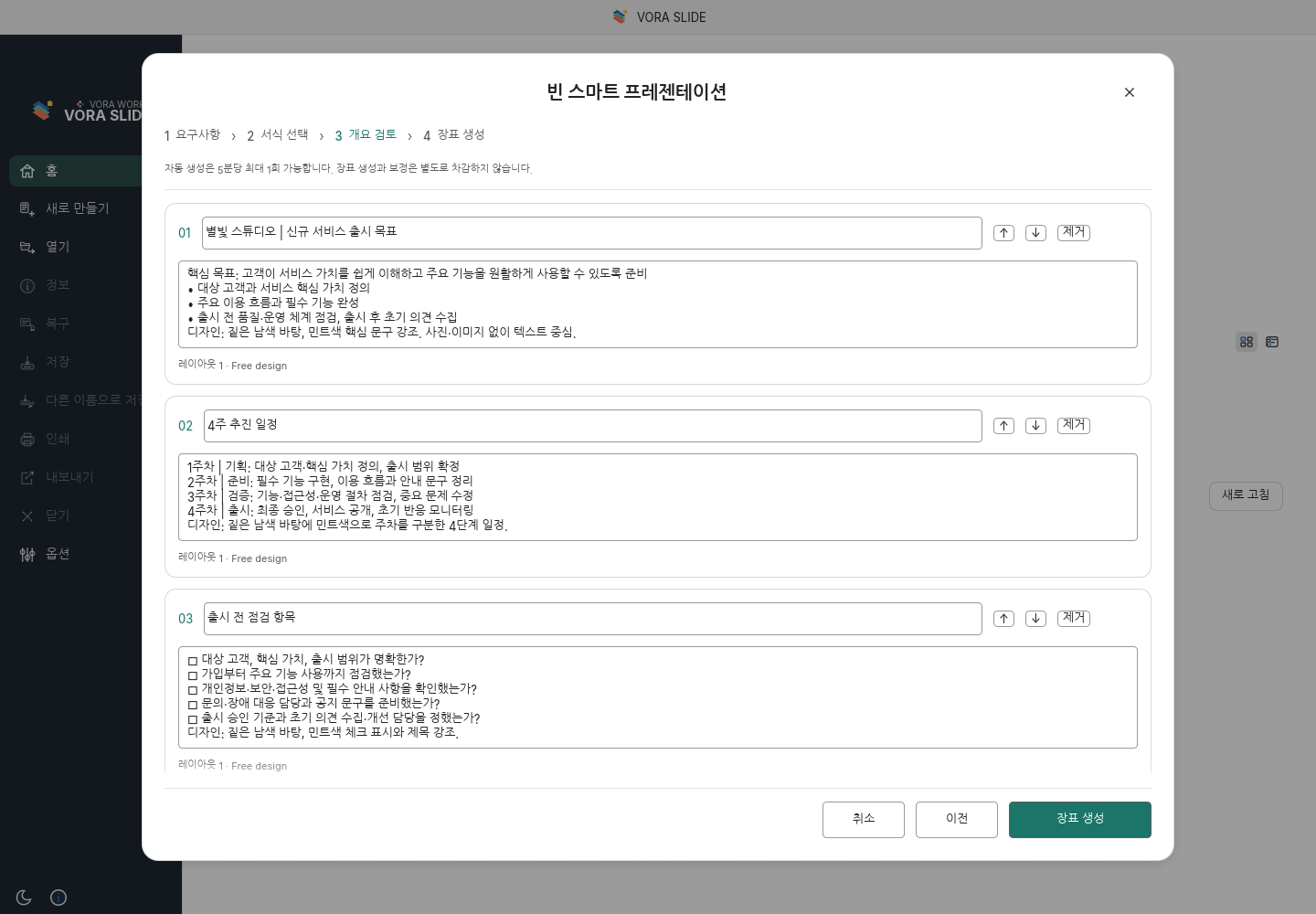
- Generate the outline and review each slide’s title and body. Revise the content, reorder slides, or remove unwanted ones before generating the slides. The real screen below shows the review of a three-slide outline before generation.
10. Create slides from an attachment
Specify the relevant part, such as the market size and conclusion of an attached report. Preserve dates and units, and ask for claims, evidence, and conclusions rather than copying long paragraphs onto slides.
11. Standard editing, template creation, and Smart editing
Standard editing uses the ribbon and direct object selection. Template-based creation builds an editable deck from the selected layout and outline. Smart work is AI-focused and also allows direct changes to existing text. Keep the .voras original for its document and conversation state separately from PPTX or PDF copies for delivery.
12. Choose a template, review the outline, and generate
For template-based creation, enter requirements, preview the template, and review the outline. Adjust slide titles, order, and main claims before generating. Review the new presentation separately from the original template.
13. Progress, interruption, and keeping results
Monitor progress and errors without repeatedly starting the same job. Distinguish completed slides from remaining work and inspect retained output before retrying. Follow the interface guidance about what can be resumed after interruption.
14. Save and export a Smart original
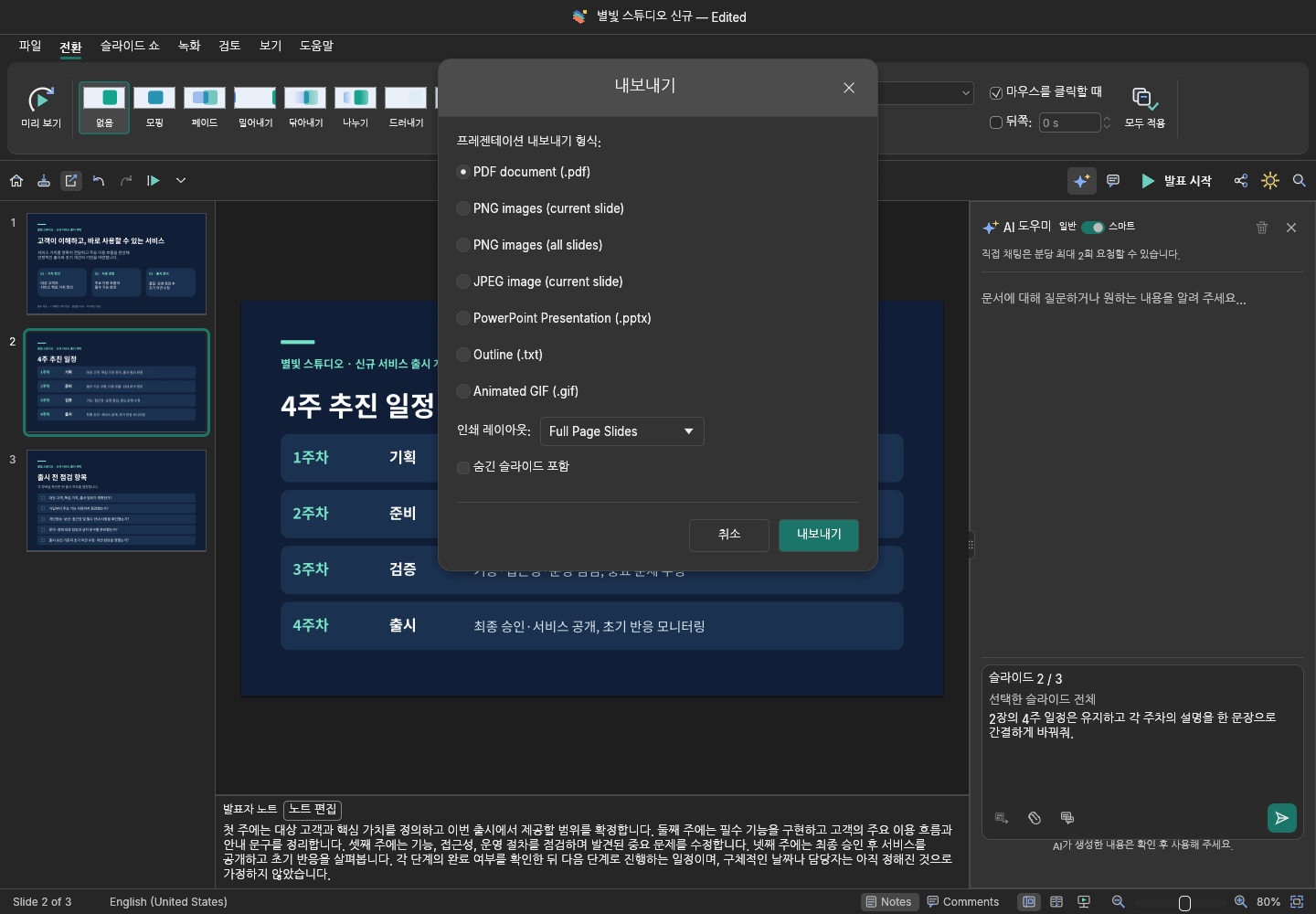
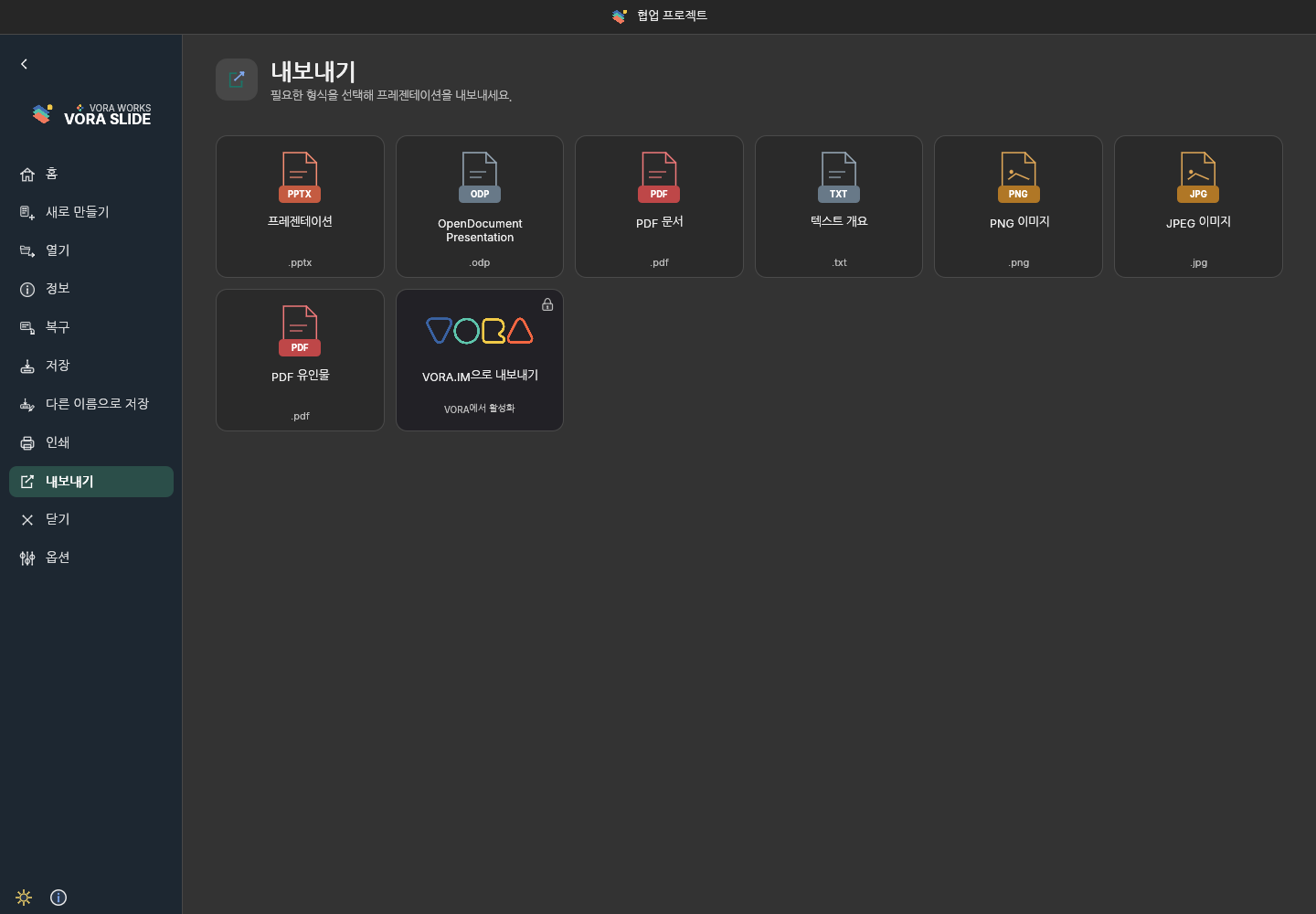
Save a Smart presentation as .voras to continue with its document and conversation state. Choose PPTX, PDF, or images from File → Export for your intended use. PPTX is an editable copy for other presentation apps and does not include the dedicated .voras conversation history. Run Export to VORA separately and check the registered result on AI Creations.
| Format | Use |
|---|---|
| .voras | Keep the document and conversation for continued work in the same editor. |
| PPTX | An editable copy for other document apps; it does not include the dedicated conversation history. |
| A copy for printing and distribution. Check pagination and clipping before exporting. | |
| VORA | Save PPTX to AI Creations from a connected session. Check that registration completes. |
15. Ribbon, slide list, and editing canvas
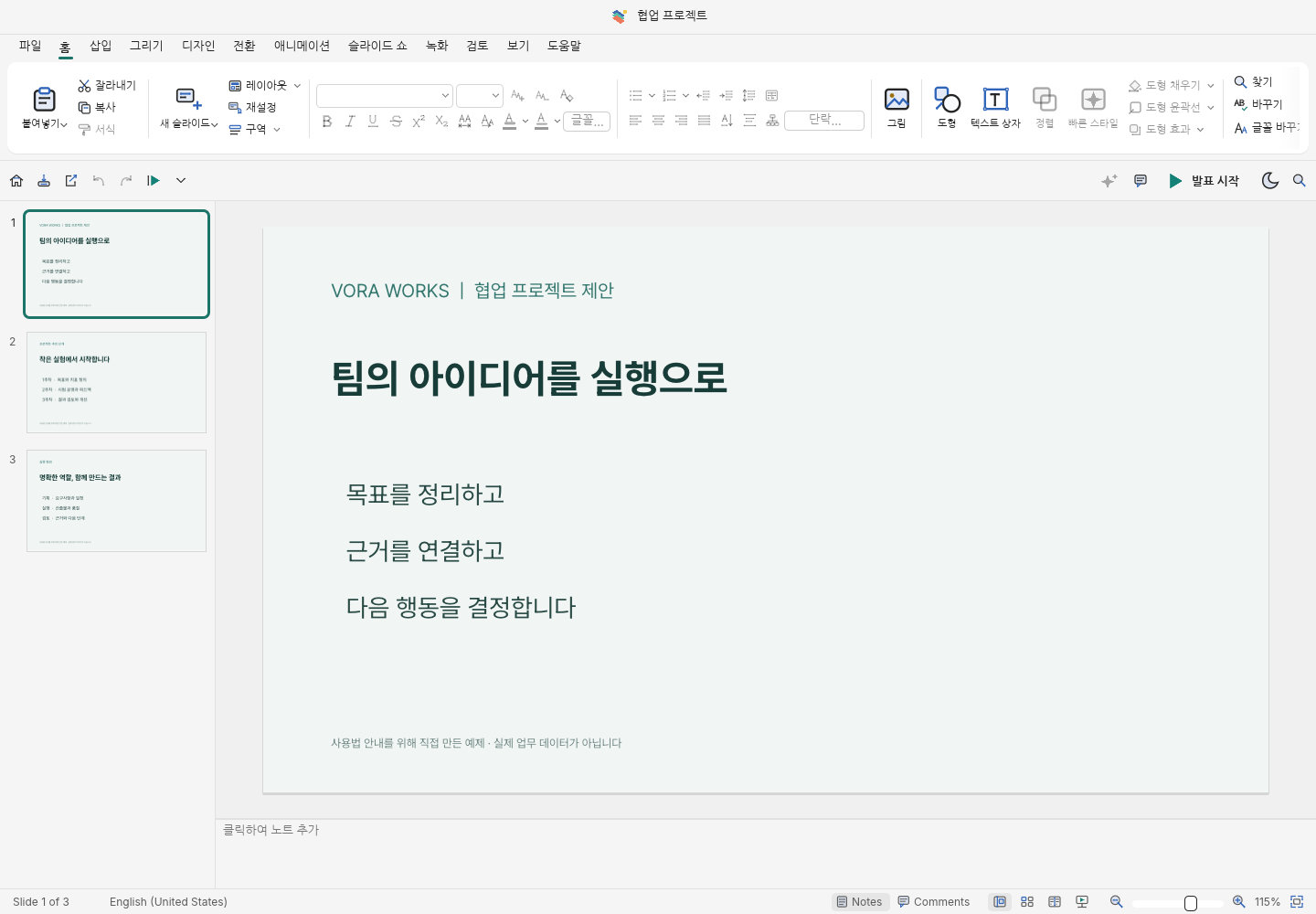
Choose a slide from the left pane and select objects on the central canvas. The ribbon includes Home, Insert, Design, Transitions, Animations, Slide Show, Recording, Review, and View. Use the notes area and status bar for the script and zoom.
16. AI edits to slides and selected objects
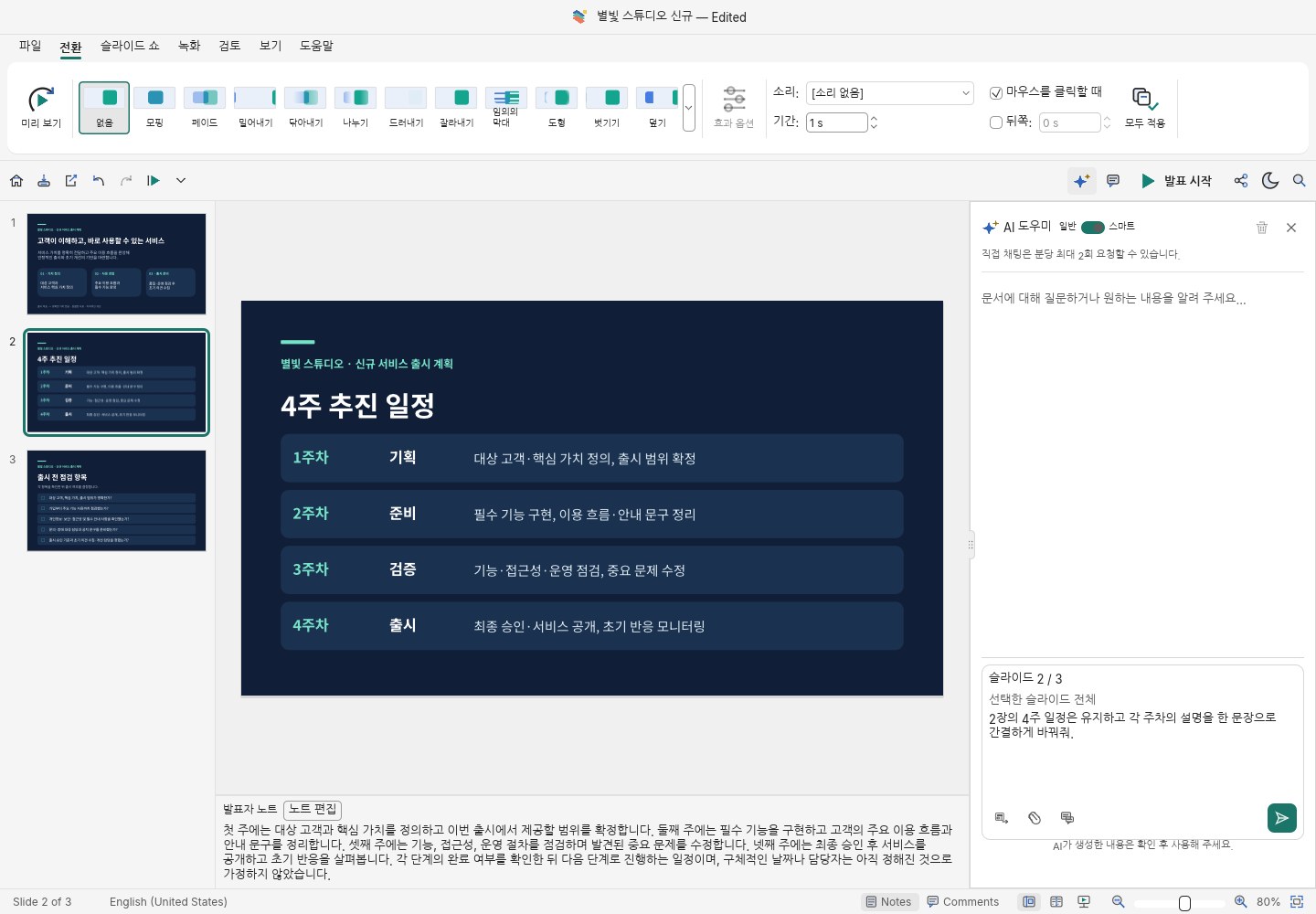
After generation, choose a slide and specify the scope in the AI panel: “Keep the dates on slide 2, but shorten its explanations.” Distinguish text revisions from restructuring images, tables, or objects, and inspect the result and other slides after applying changes. During generation, use the stage display and slide previews; after interruption or failure, inspect any retained draft before continuing.
Specify whether to change the whole slide or only its selected title, table, or image. A request such as “shorten slide 2’s title but keep the figures” gives a clear scope. Check other objects and speaker notes after applying the result.
17. Attach documents and images to AI requests
State whether a document is evidence and whether an image is an asset to insert or a design reference. If text in an image must be retained exactly, request that explicitly and compare the result.
18. Text, fonts, and paragraphs
Edit a selected text box or use Home for fonts, sizes, alignment, and lists. Keep a clear hierarchy between titles and body text and choose readable presentation sizes. Recheck wrapping and overflow after font changes.
19. Shapes, icons, alignment, and stacking
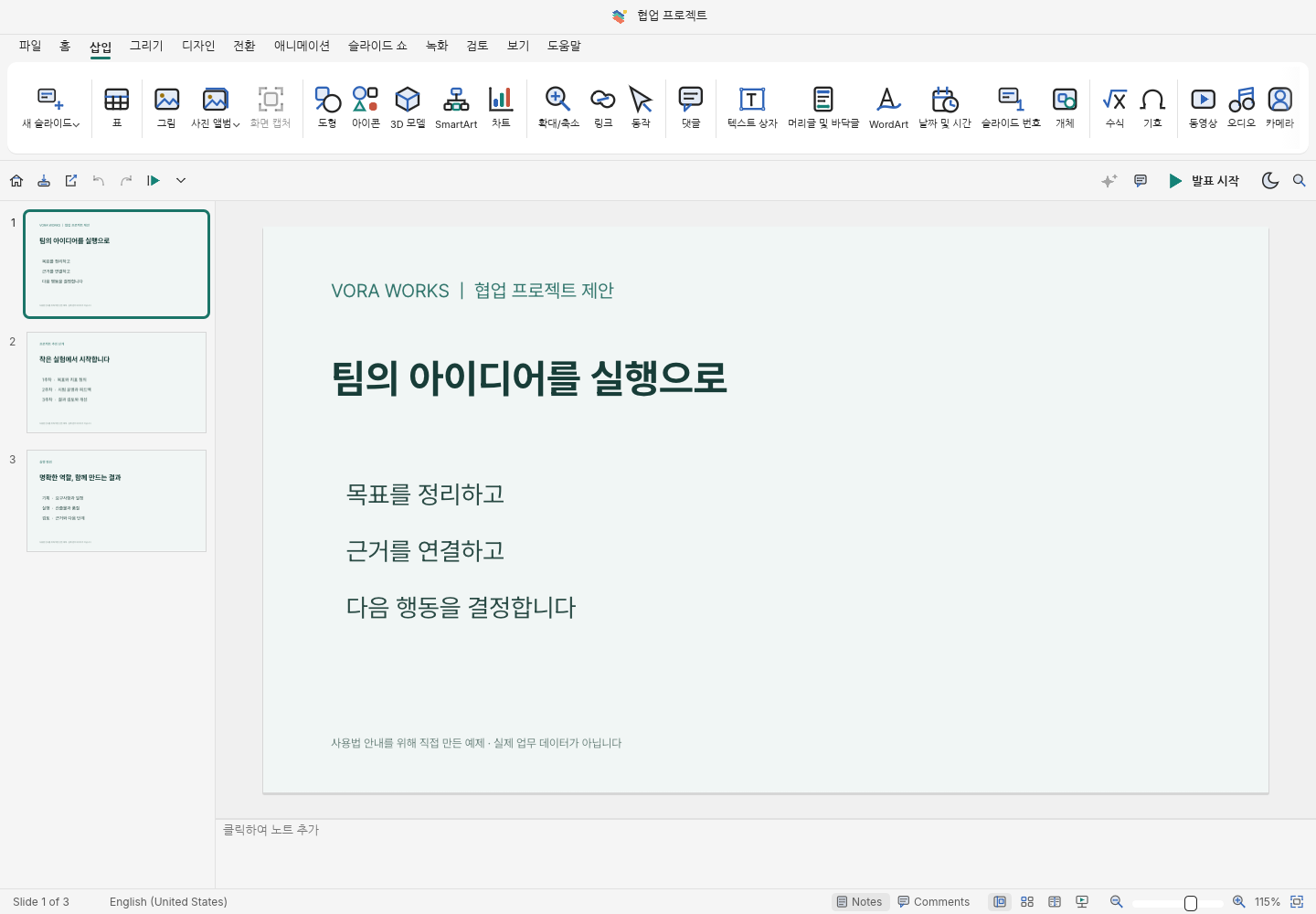
Add shapes, icons, and text boxes from Insert. Adjust alignment, spacing, grouping, and stacking for selected objects. Establish the explanation’s structure before fine-tuning colors and decoration.
20. Insert, crop, and replace pictures
Insert a picture, then adjust its size and crop while keeping its proportions. Try background removal and formatting on a copy with the original retained. AI search or generation requires an enabled connection; review the actual image and its source.
21. Chart data, axes, and legends
Insert a chart and check its source data, series, and categories. Adjust its size and position so axis units, legends, and labels remain readable. Distinguish chart images from editable data-backed charts and check the exported PPTX.
22. Table rows, columns, and cell formatting
Adjust row and column counts, cell dimensions, borders, fills, and text alignment. Rather than compressing a long report table onto one slide, retain essential columns or split it across slides. Preserve totals, units, and sources.
23. SmartArt and explanatory diagrams
Use SmartArt and shapes to explain processes, hierarchies, or relationships. Define labels and connections before adjusting colors and layout. Shorten dense text and distinguish flattened diagram images from editable objects.
24. Audio, video, and linked content
Use Insert for video, audio, and links as appropriate. Linked material can depend on the playback environment and network. Check playback, volume, and permissions on the presentation device, distinguishing embedded content from external references.
25. Add slides, reorder them, and use sections
Organize the deck using New Slide, Layout, and the left slide pane. After duplicating or moving slides, review the narrative and numbering. Group large decks into sections and check how hidden slides are handled during presentation and export.
26. Speaker notes, comments, and undo
Use notes beneath the slide for the script and supporting detail, and comments for review feedback. Speaker notes are separate from the audience view. Save a copy before extensive layout changes and check undo behaviour.
27. Slide shows and presenter view
Start presenting with the presentation control or Slide Show ribbon. Presenter view with current/next slides and notes is separate from the audience screen. Check popup permissions when another window is needed and rehearse transitions and animations on the actual device.
28. Presentation audio, recording, and video export
Use Recording for presentation recording and video export. Select microphone or camera use explicitly and grant browser permission. Available codecs depend on the environment, so play the saved file to verify video and audio.
29. Share results separately from editing links
An editing-session link is for connected work. Export PPTX or PDF for distribution through an approved sharing channel. For a presentation-view link, check its audience, permissions, and document version.
30. Save PPTX, PDF, images, or to VORA
Choose PPTX, ODP, PDF, text outline, PNG, JPEG, or PDF handouts from File → Export. VORA saving requires a connected session; check registration on the AI Creations page. Keep editable PPTX and distribution copies separately.
31. Open and reuse existing PPTX files
Open existing decks through File → Open and inspect every relevant slide. Check tables, charts, images, fonts, and notes rather than only the cover. Save edits under another name. Convert legacy binary PPT to PPTX in its source application before opening it here.
32. Standard and Smart template libraries
Browse templates from New and preview the complete deck. Standard templates provide a starting point for direct editing; Smart templates act as design references for Smart generation. Use names, search, and categories, and match content length to the selected layout.
33. Design, themes, and personal templates
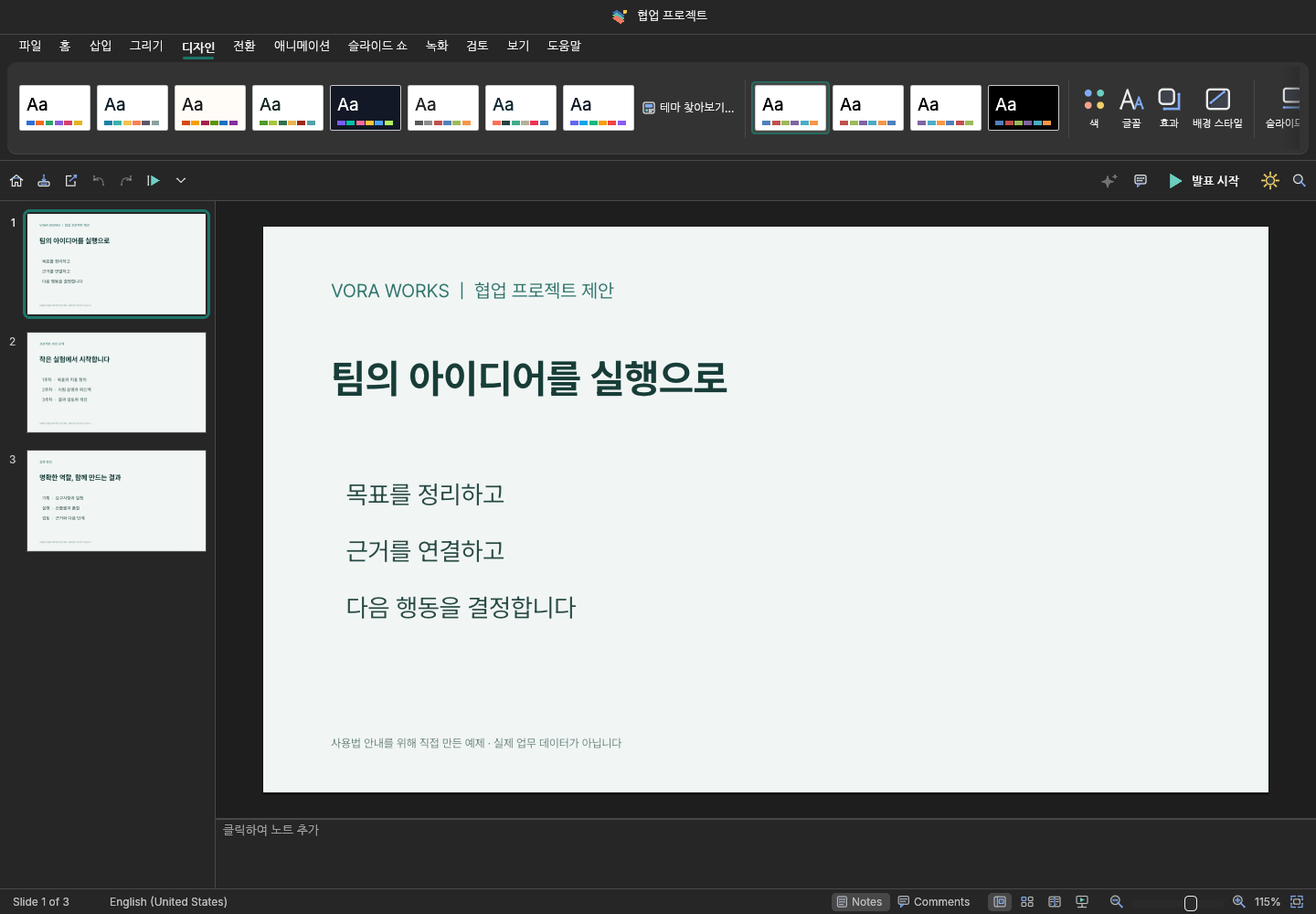
Use Design for themes, colors, fonts, and backgrounds. Keep personal templates as reusable copies distinct from the current document. Personal Smart templates use .voras; review their name and slide previews before registering.
34. Personal template storage and sharing scope
Distinguish the supplied library from your personal templates. Registering a personal template is not public publishing or collaborative editing. Using a public design does not publish your current document. Keep a separate file copy of reusable work.
35. Shortcuts and command search
| Action | Keys |
|---|---|
| Save | Ctrl/Cmd+S |
| Undo | Ctrl/Cmd+Z |
| Copy and paste | Ctrl/Cmd+C · Ctrl/Cmd+V |
| Deselect or exit presentation | Esc |
Use command search and ribbon tooltips to find actions. If a shortcut conflicts with the browser, use the menu and check whether the command targets text editing or the selected object.
36. Supported formats and current limits
Use PPTX as the main editing format and check feature support for related formats and ODP. Legacy .ppt/.pps/.pot binaries are unsupported. Follow the current dialog’s AI slide-count, attachment, and export limits rather than applying an old generation cap to all editing.
37. A recommended path to completion
- Define the goal, audience, and presentation time, then select evidence.
- Choose a blank deck, existing file, or template and prepare the outline.
- Edit content, tables, charts, and images, then align fonts, spacing, and margins.
- Review notes and rehearse, then save PPTX, PDF, and the needed working original.
38. Troubleshooting and final checks
| Situation | Action |
|---|---|
| AI or VORA export is locked | Open a fresh tool link from VORA and check the connection. Use local saving independently. |
| A recent file is missing | Check that you are using the same device and browser, or reopen your saved copy. Recent files are not a cloud-sync list. |
| Display or export differs | Check fonts, paper settings, zoom, and format support, then compare the original copy with the exported file. |
| Long-running or interrupted work | Check the error and progress state. Save your unsaved edits before retrying. |