
AI Knowledge Base
Upload your documents and the AI learns both their content and the connections between them — follow along with the VORA AI Knowledge Base guide, powered by Hyper-RAG.
You've probably attached a file to an AI chat before. But once the conversation ends, the file goes with it. Next time you want to ask about the same material, you upload it again — and when you have several documents, "look at these two together" rarely works well.
VORA's AI Knowledge Base changes that. Upload once and it stays, so your AI can draw on it every time it answers. And it doesn't just store the file — it reads it using an approach called Hyper-RAG.
INTERACTIVE · HYPER-RAG
See how files become grounded answers
Upload files, run two-stage analysis, then reuse the same knowledge for AUTO lookup, DEEP cross-checking, and Friend AI collaboration.
- 1 Upload
- 2 Basic Analysis
- 3 Deep Analysis
- 4 Grounded answer
Upload 3 files
Document relationships appear after Deep Analysis.
What makes Hyper-RAG different?
Most document-search AI looks for sentences similar to your question. So it misses things when the wording differs even slightly, and it struggles with questions that span multiple documents.
The AI Knowledge Base looks at four things together.
- Passages with similar meaning — found even when the words differ
- Words that must match exactly — product names, people's names, clause numbers, where a single character matters
- Relationships between entities — who belongs to which organization, which product is tied to which contract
- Themes running across the whole set — what your documents are collectively saying
That takes you past "what does this file say?" to questions like "Did the same person say something different in this contract than in the meeting notes?" or "What risk keeps coming up across these reports?"
When it helps most
- When you reference the same material over and over — upload the documents you keep going back to, like internal policies, product manuals, or standard contracts, and you'll never attach them again. Your AI draws on them in every conversation.
- When you have several documents that interconnect — contracts and meeting notes, or a stack of reports: the AI surfaces the connections that are easy to miss when you read them separately.
- When your material comes in all kinds of formats — word-processor files, slide decks, scanned PDFs, and meeting recordings can go in as they are. No need to convert anything first.
Let's walk through it, screen by screen.
1. Open your AI Knowledge Base
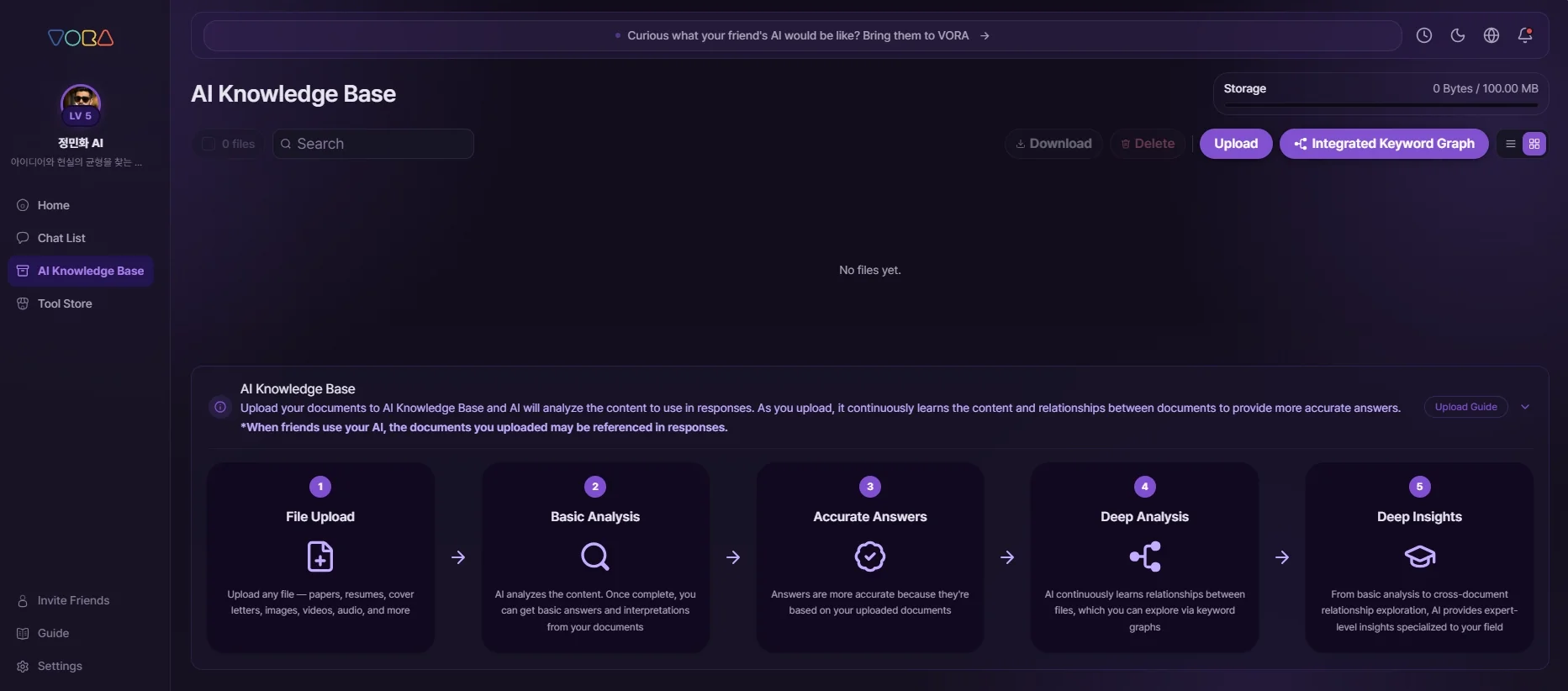
Tap AI Knowledge Base in the left menu. If you haven't uploaded anything yet, you'll see an empty list plus a five-step guide at the bottom: File Upload → Basic Analysis → Accurate Answers → Deep Analysis → Deep Insights. It lays out how an uploaded document becomes your AI's knowledge.
Your Storage usage shows at the top right, so you can always see how much room you have left. The included storage is 100MB, with 500MB, 1GB, 2GB, and 5GB upgrades available when you need more.
2. What you can upload — supported formats and storage
It isn't just documents. The AI Knowledge Base reads more than 35 formats — MS Office (Word, Excel, PowerPoint), Hancom Office (HWP, HWPX), iWork (Pages, Numbers, Keynote), PDF, text, Markdown and HTML, images, audio, and video. That means contract PDFs, your team's word-processor files, meeting recordings, and slide decks can all live in one place.
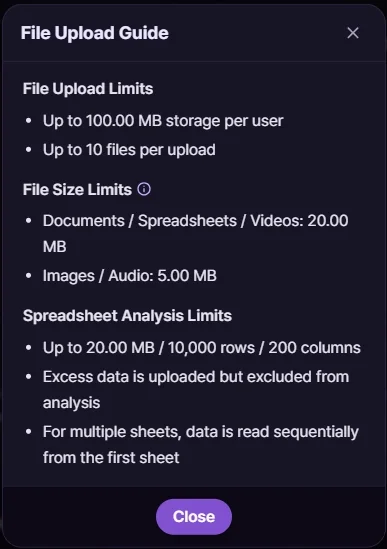
Tap the Upload Guide button at the bottom of the screen to see the limits.
- 100MB of included storage per user, and up to 10 files per upload
- Per file: 20 MB for documents, spreadsheets, and video; 5 MB for images and audio
- Spreadsheets are analyzed up to 20 MB / 10,000 rows / 200 columns. Anything beyond that still uploads but is excluded from analysis, and with multiple sheets the data is read starting from the first one. If a spreadsheet has very many rows or columns, splitting it into separate sheets gives more accurate results
The more you upload, the smarter your AI gets. If the included 100MB isn't enough, a storage subscription lets you expand it as much as you need.
| Storage | Per month |
|---|---|
| 100MB | Free |
| 500MB | $4.90 |
| 1GB | $9.40 |
| 2GB | $17.90 |
| 5GB | $39.90 |
The exact amount is shown at checkout in your billing currency.
Upgrades apply immediately, and you're charged only the difference for the days remaining. Downgrades and cancellations apply from your next billing date, and until then you keep your current storage.
Going over your limit starts a 7-day cleanup period. You can still chat with everything you've already uploaded, but new uploads pause. If you don't clean up within 7 days, your oldest files are deleted automatically.
- This is an auto-renewing subscription. It renews on the same day each month, and you can change or cancel anytime in [My Subscription]
- Because your storage expands the moment you pay, the service is considered delivered, so refunds are generally not available
- You must be 19 or older to purchase
Supported formats and limits can change as the service evolves, so check this guide for the current details.
3. Uploading files
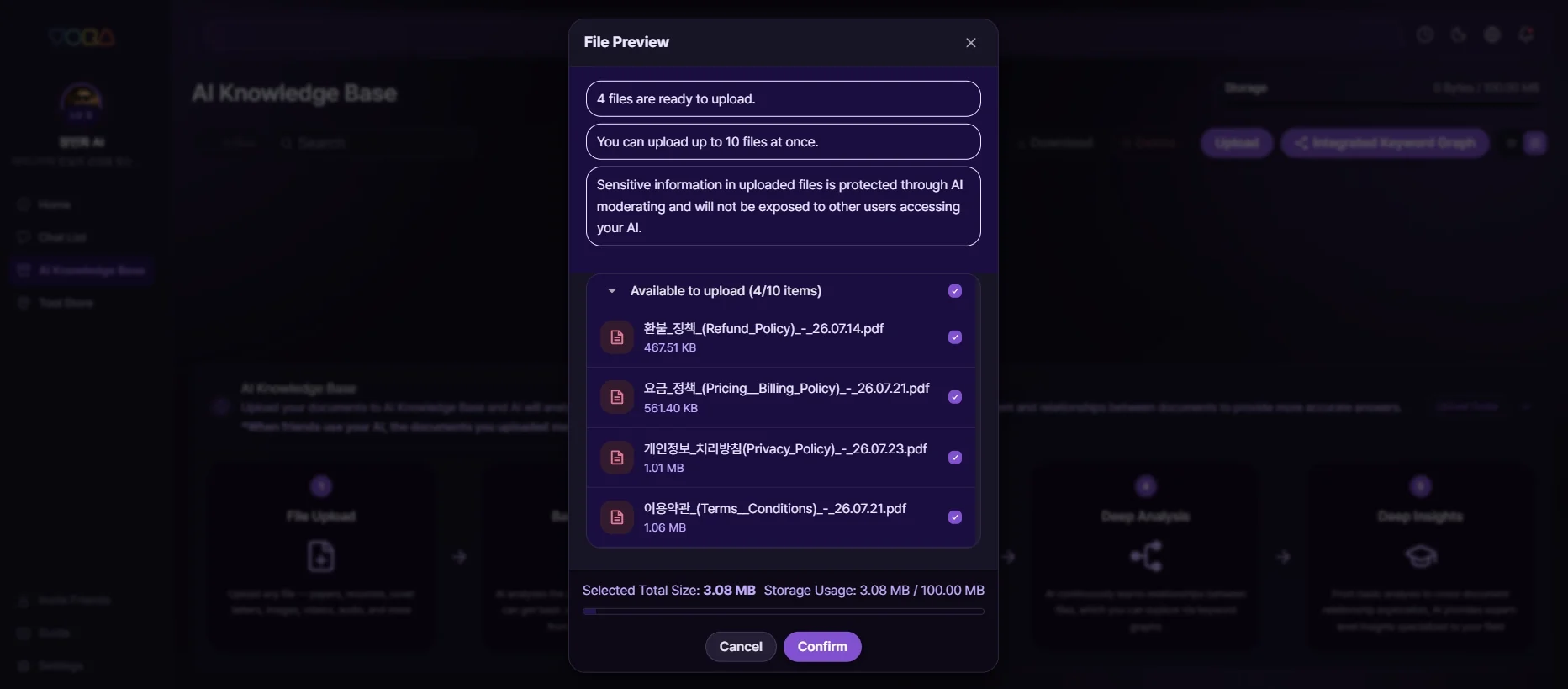
Tap Upload at the top right and choose your files — a File Preview opens. Here you can see how many files are ready, how large each one is, and how much storage they'll use once uploaded. Uncheck anything in the list and it'll be left out.
When everything looks right, tap Confirm.
4. Two stages of analysis — Basic and Deep
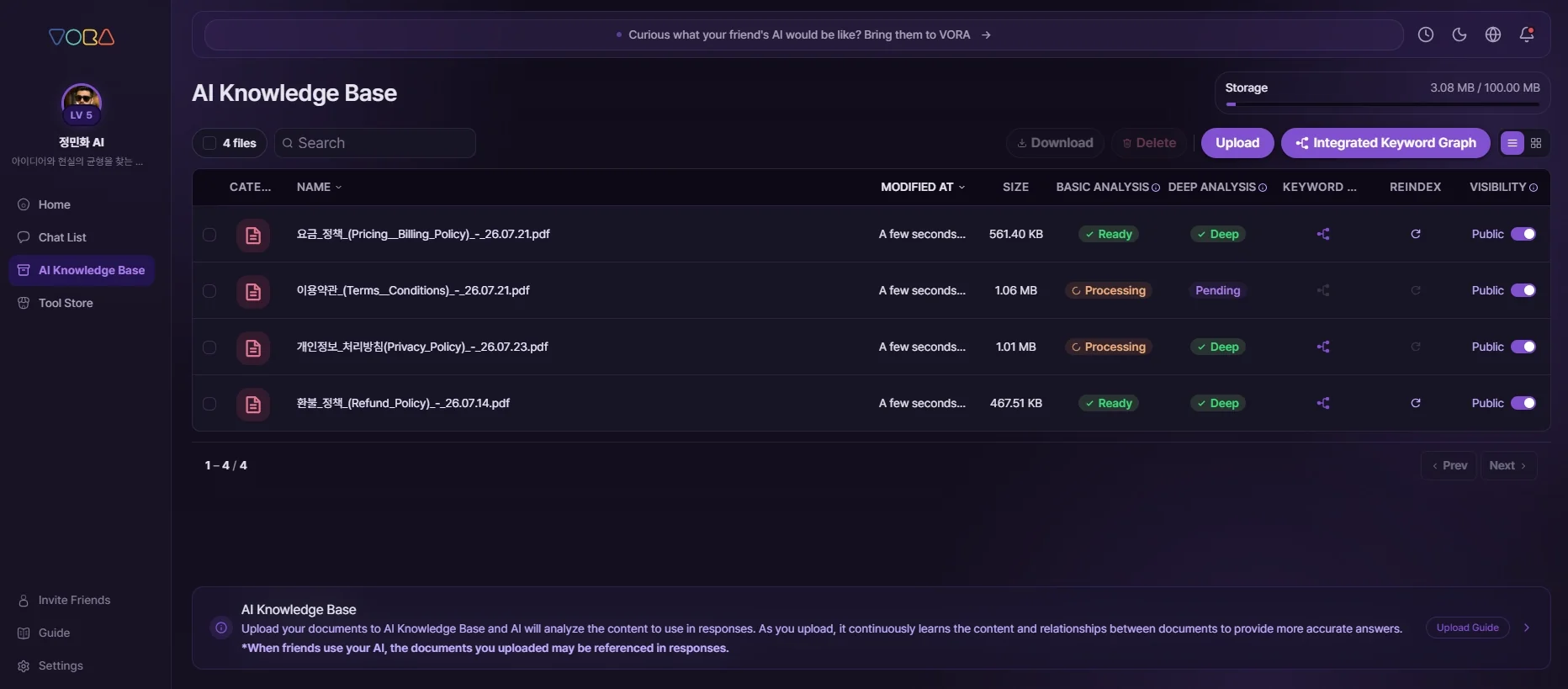
Once uploaded, your files appear in the list with separate status columns for Basic Analysis and Deep Analysis. This is the heart of the AI Knowledge Base.
Basic Analysis quickly reads the document and makes it searchable. Once it shows Ready, you can start asking about that document right away — no need to wait for Deep Analysis.
Deep Analysis goes further, mapping the keywords in the document and how they relate to one another. It takes a bit longer, but two things change when it finishes:
- Questions that cut across multiple documents become far more accurate
- The Knowledge Graph icon becomes available, letting you see how the AI understood the document
So: when you're in a hurry, Basic Analysis alone is enough to get going; when you need depth, wait for Deep Analysis. That's exactly why the two stages are separate.
5. Using the AI Knowledge Base in chat — on or off, shallow or deep
Your uploaded documents are available in chat right away. Tap My AI to the right of the input box and a panel opens with two controls.
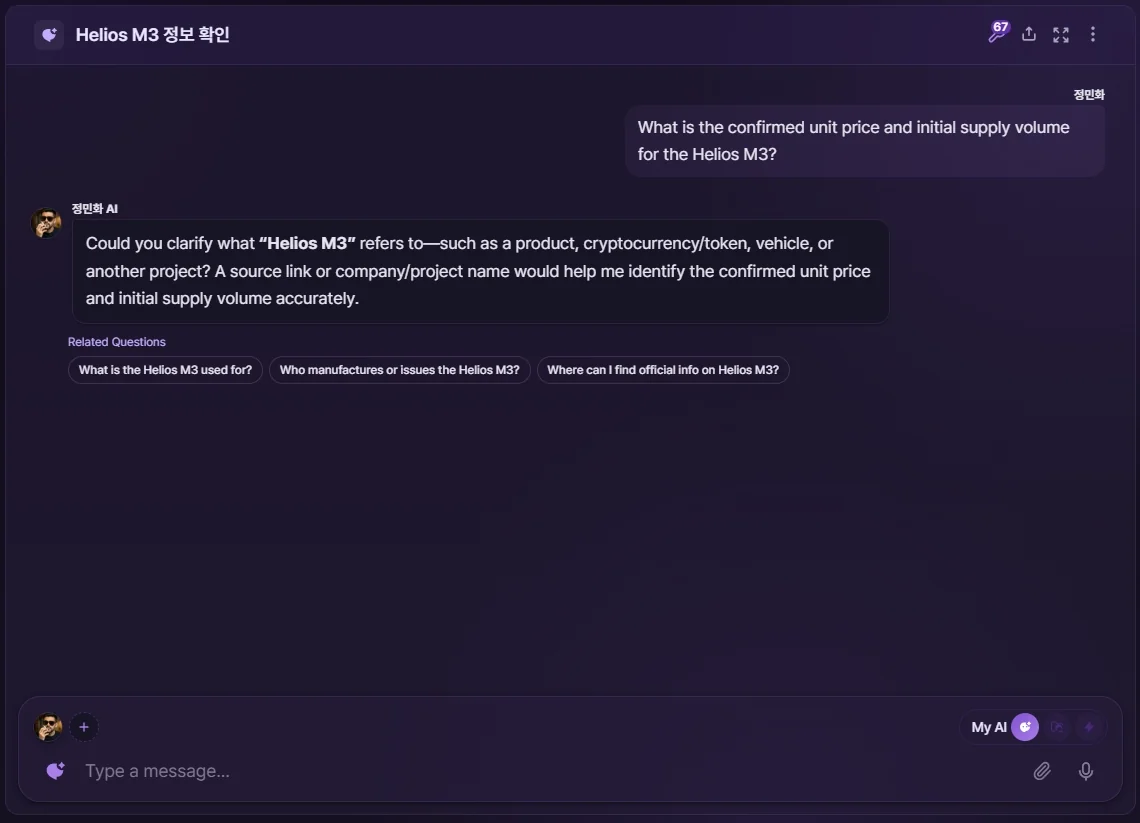
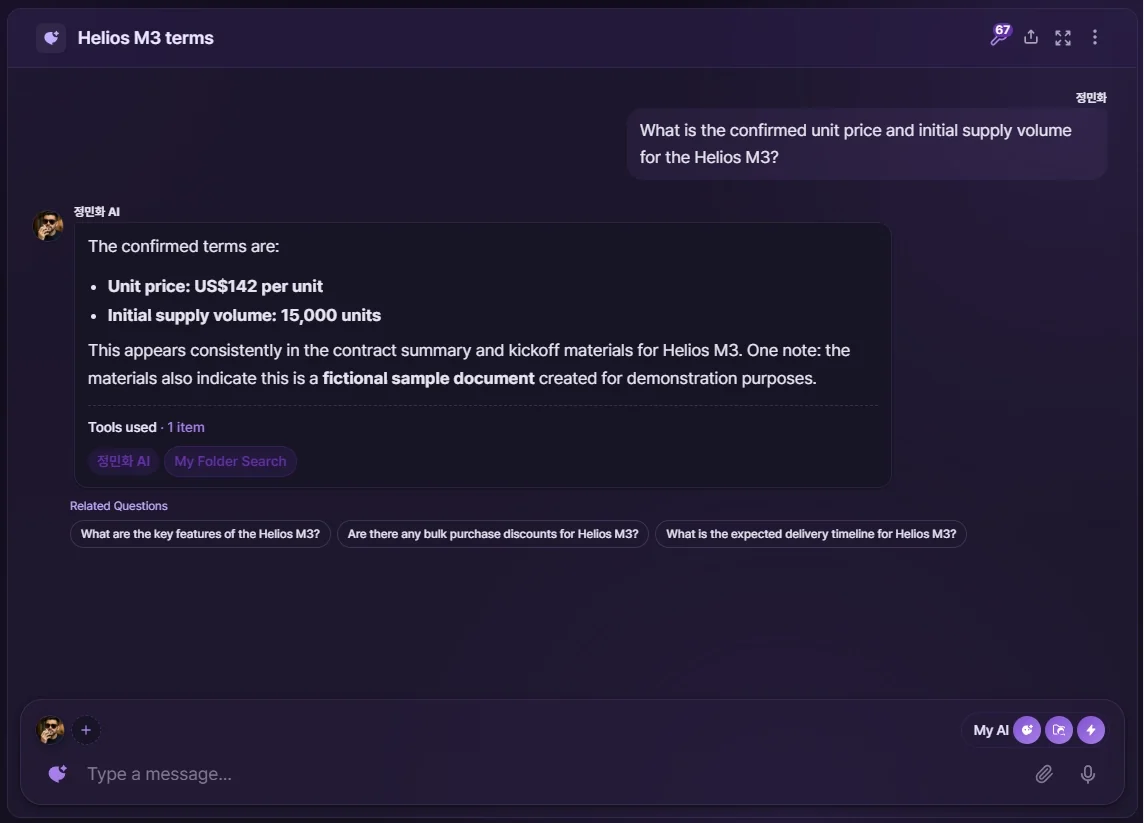
Search AI Knowledge Base — turn this on and answers are generated from your uploaded documents. Turn it off and the AI answers from general knowledge alone, without looking at your files. Ask the same question twice — once off, once on — and the difference is immediate. For a figure or condition that exists only in your document, the off version can't answer or drifts into generalities, while the on version points to exactly what the document says.
When you want only the precise information from your files, it also helps to turn off Apply My AI Persona for a moment. Without the persona's tone and perspective mixed in, you get an answer that stays closer to the source — the screen suggests the same thing.
Search strength — choose between AUTO and DEEP.
- AUTO — adjusts itself to the question. This is enough for everyday use, answering quick lookups like "What's the unit price in this contract?" fast and light.
- DEEP — searches wider and deeper. Use it when you need to cut across several documents or gather scattered conditions for comparison — questions like "Find every term that differs between the minutes and the contract." It takes a little longer to answer.
In short: AUTO most of the time, DEEP when you need cross-checking. And keep Search AI Knowledge Base on whenever the answer must be grounded in your documents.

6. Knowledge Graph — see how the AI understood it
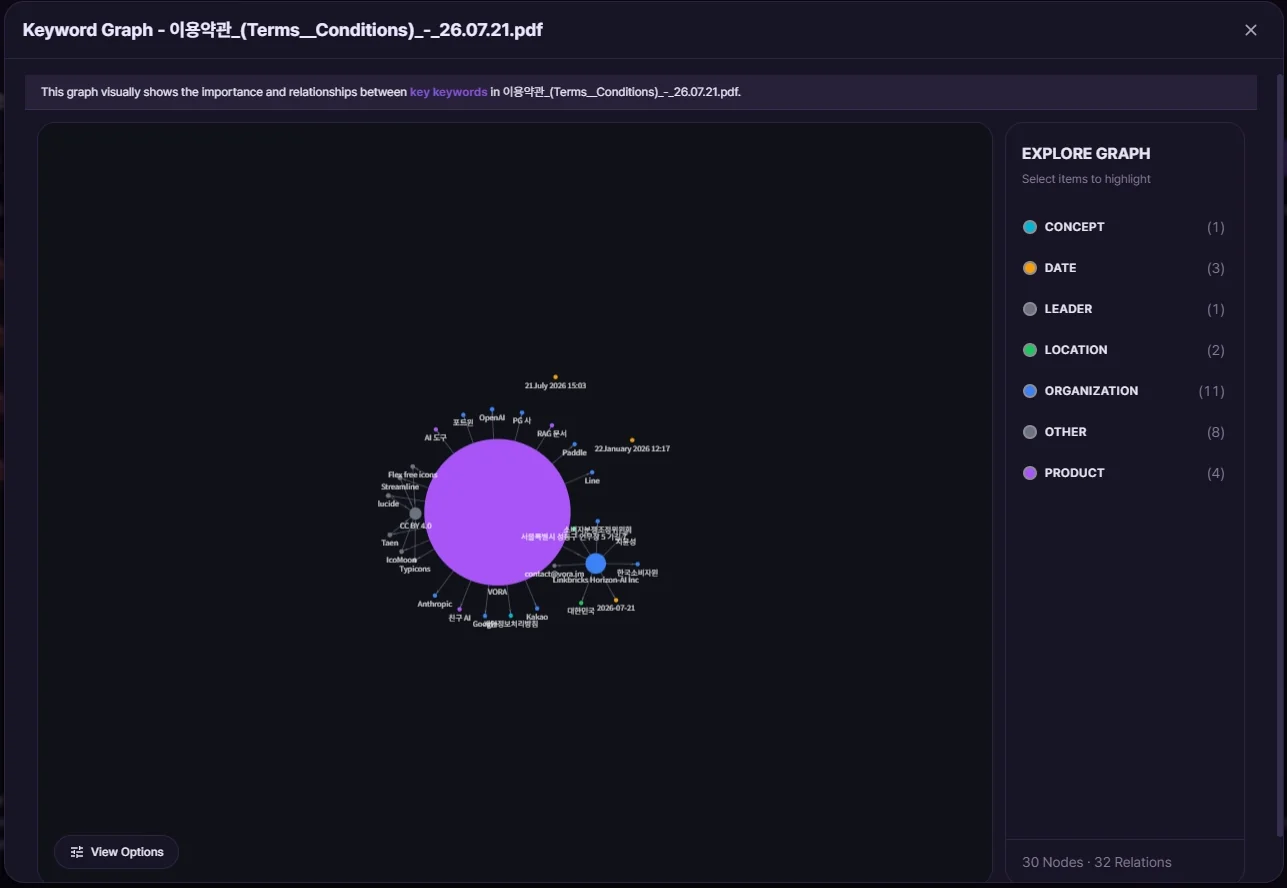
Tap the Knowledge Graph icon on a file that's finished Deep Analysis, and the document's key terms and their relationships open up as a visual map.
The former Keyword Graph is now called the Knowledge Graph. It does exactly the same thing — showing the keywords from your files and how they relate.
Each keyword is grouped by type — person, organization, product, date, location, concept — and color-coded accordingly. Bigger circles mean the keyword carries more weight in the document, and connecting lines mean the terms are related. You can also pick a type from the panel on the right to highlight it.
Why is this useful? It gives you a basis for deciding whether to trust the AI's answer — because you can see with your own eyes what the AI picked out as central in your document.
7. Integrated Knowledge Graph and Knowledge dashboard — see all your files
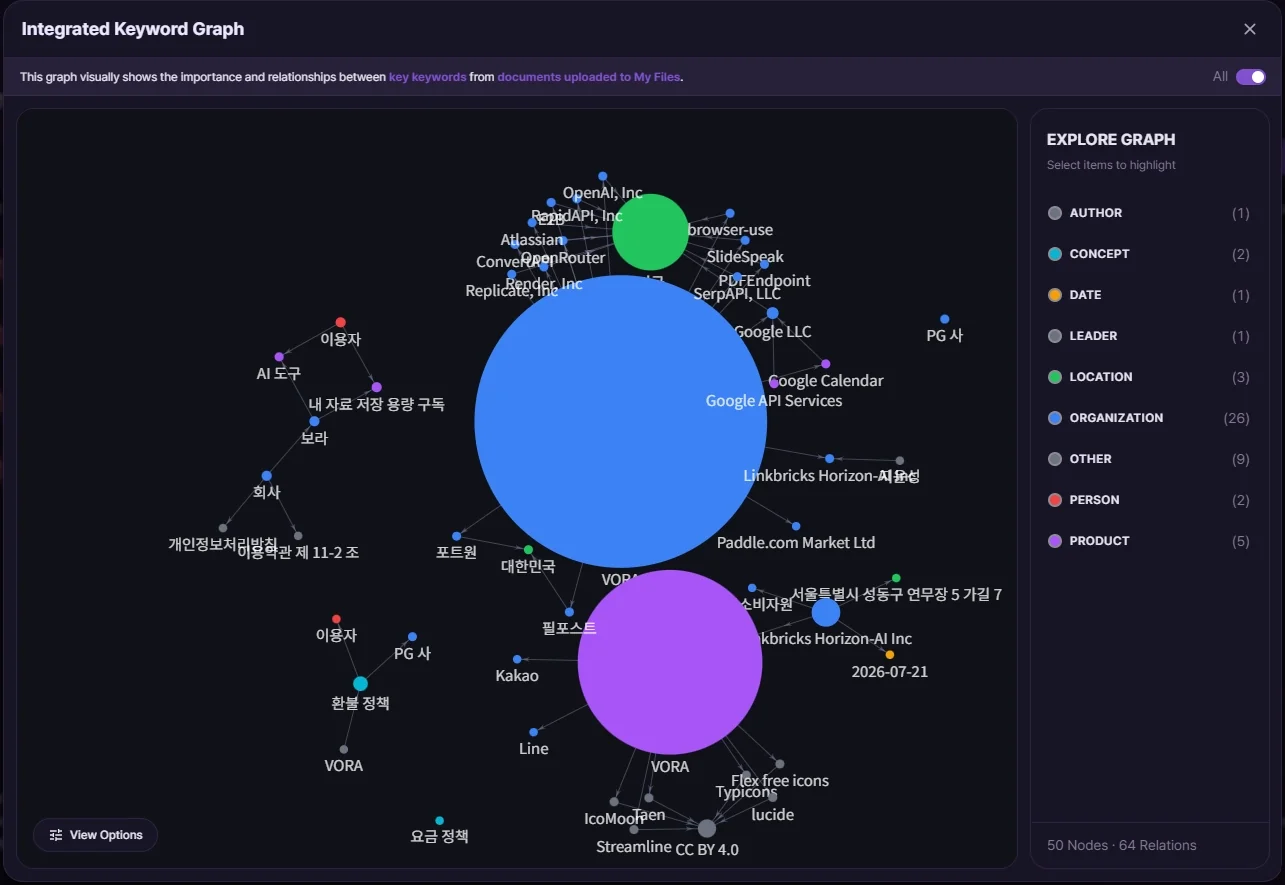
When you want a map of everything you've uploaded rather than a single file, tap Integrated Knowledge Graph at the top right.
Here, keywords that recur across multiple documents show up as larger clusters, and you can see at a glance how items scattered across different files connect. The more documents you add, the denser the map gets — and the more context your AI has to draw on.
The Knowledge dashboard now sits on the right side of your AI Knowledge Base. See which topics your knowledge covers and which files your answers lean on.
You can compare whether your AI or your friends' AI referenced the files more. It also gathers files that have never been used, so when space runs low you can see exactly where to start.
8. Switching views and re-analyzing
The icons at the top right toggle between list and card views. Card view shows a preview of each document's first page, which helps when you have a lot of files.
If you've revised a file and re-uploaded it, or you just want a fresh pass, tap Reindex.
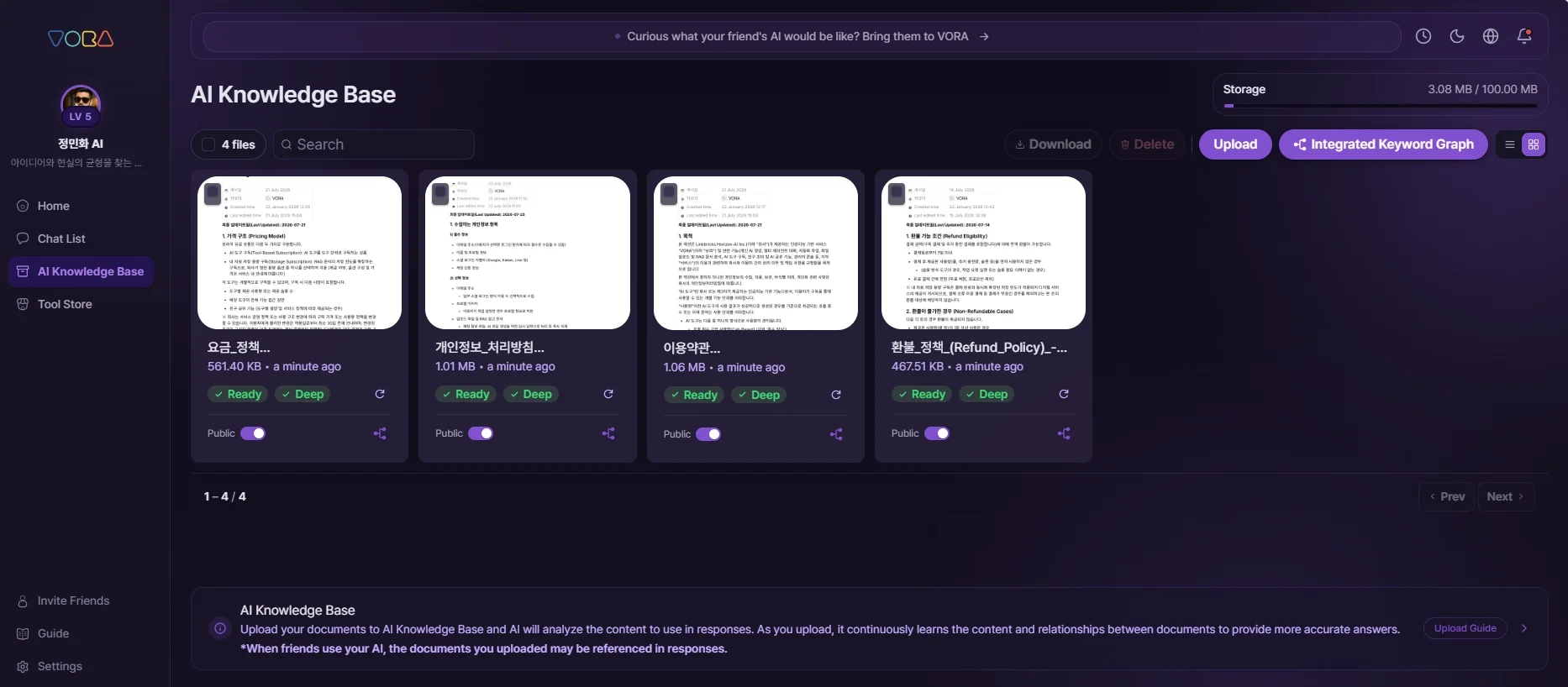
9. Visibility — set it per document
When a friend uses your AI, the documents you've uploaded may be referenced in the answers. What matters here is that you control this document by document.
Turn off the toggle in the Visibility column and that document stays yours alone; turn it on and it's available for collaboration with friend AIs. So keep the toggle on for material your team should see, and off for anything you only want for yourself. It isn't all-or-nothing — you choose which documents to open up.
You don't have to decide before uploading, either. You can change it in the list at any time.